Date — salvare și mutare
Pagina Data strânge tot ce ai pregătit în Ro Flight — profilurile de aeronavă, planurile de zbor salvate și profilul de pilot — într-un singur fișier. Folosește-o ca să ai o copie de siguranță sau ca să muți totul când treci pe un dispozitiv nou.
Cum ajungi aici: deschide meniul lateral și alege Data.
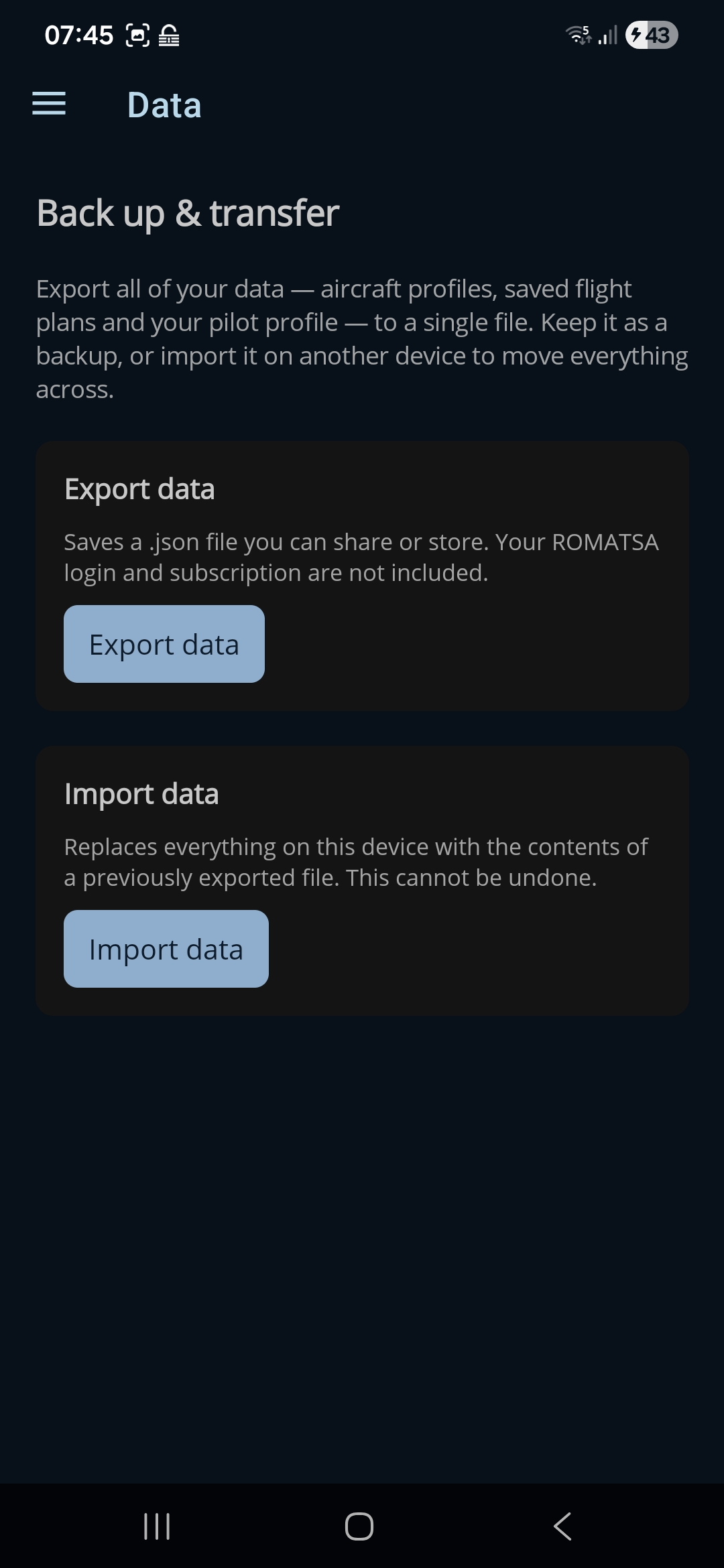
Export data
Apasă Export data ca să se scrie totul într-un fișier .json.
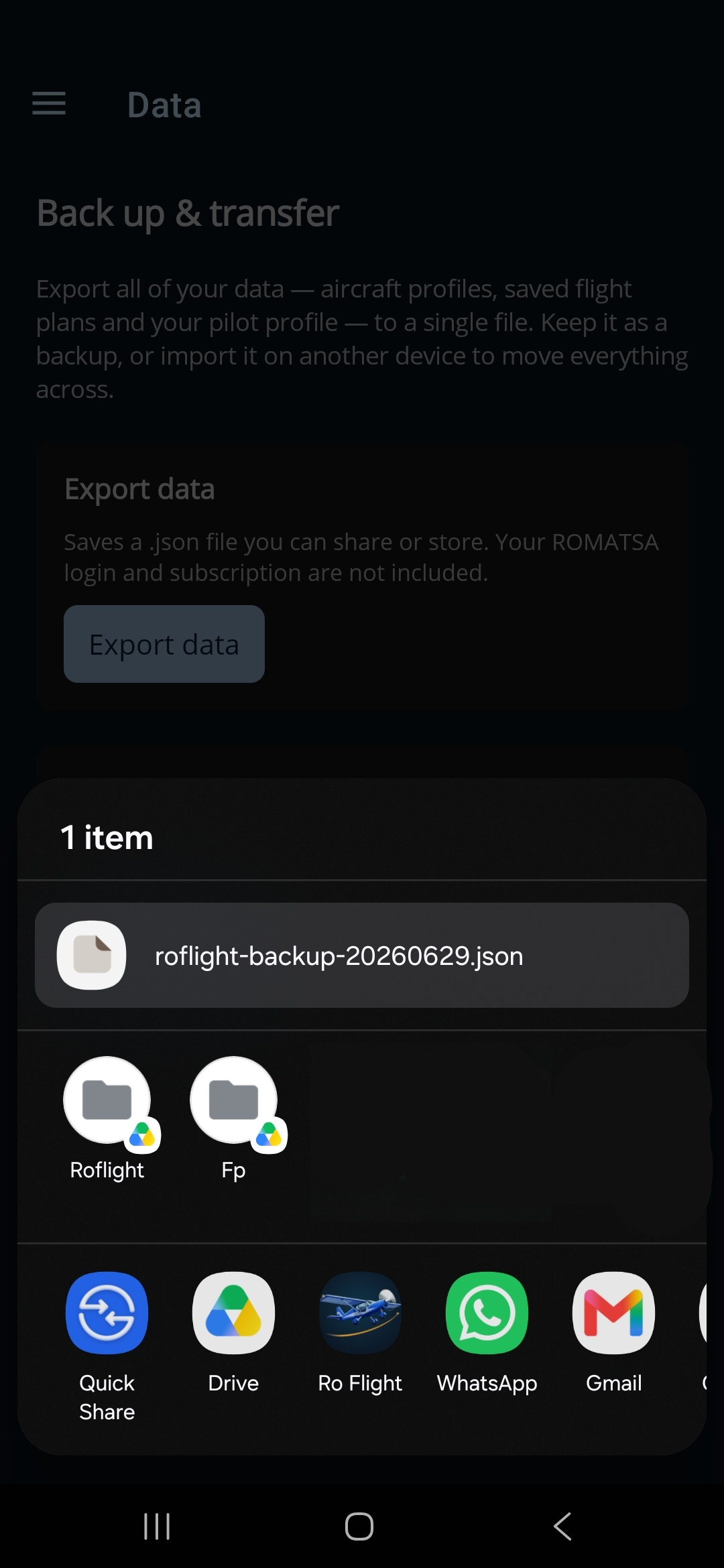
Ro Flight îl dă mai departe meniului de partajare al dispozitivului, cu numele
roflight-backup-AAAALLZZ.json, așa că îl poți salva în Drive sau în Files, ți-l
poți trimite pe e-mail sau îl poți trimite direct pe alt dispozitiv — unde vrei să ții copia.
Import data
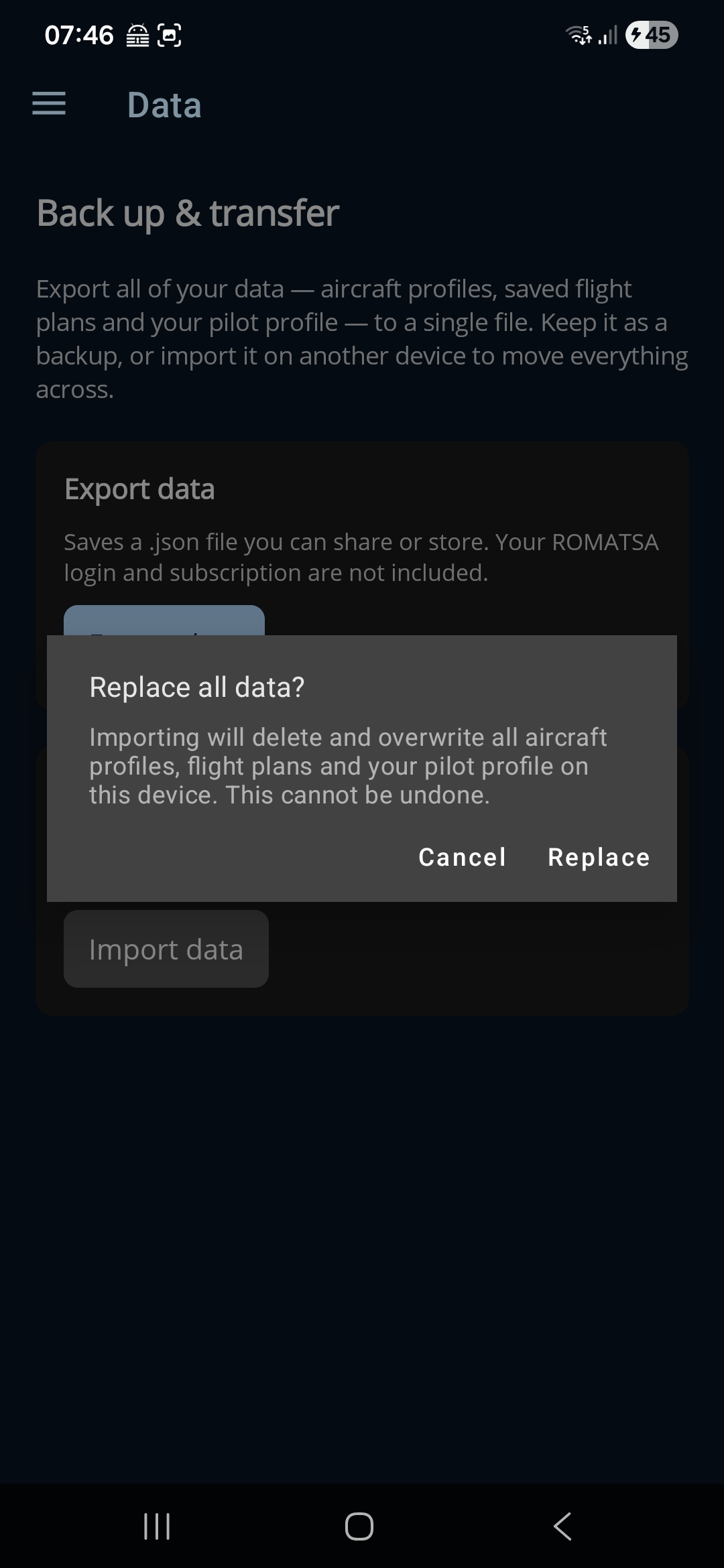
Apasă Import data și alege un fișier de salvare exportat mai devreme. Fiindcă importul înlocuiește tot ce se află acum pe dispozitiv, Ro Flight îți cere întâi să confirmi, printr-o fereastră „Replace all data?” — se suprascriu toate profilurile de aeronavă, toate planurile de zbor și profilul de pilot, iar acest lucru nu poate fi anulat. Alege Replace ca să mergi mai departe sau Cancel ca să te retragi.
Importul șterge marcajul „login verificat” pentru ambele autorități, chiar și pe același dispozitiv. Așa că, după un import, du-te în pagina Pilot Profile, scrie datele contului pentru fiecare autoritate la care depui și rulează din nou Test Login din acea secțiune, înainte să depui ceva.
Ștergerea contului
Al treilea card șterge cu totul contul tău Ro Flight. Apasă Delete account, scrie-ți parola ca să confirmi că tu ești și confirmă avertismentul. Acest lucru nu poate fi anulat.
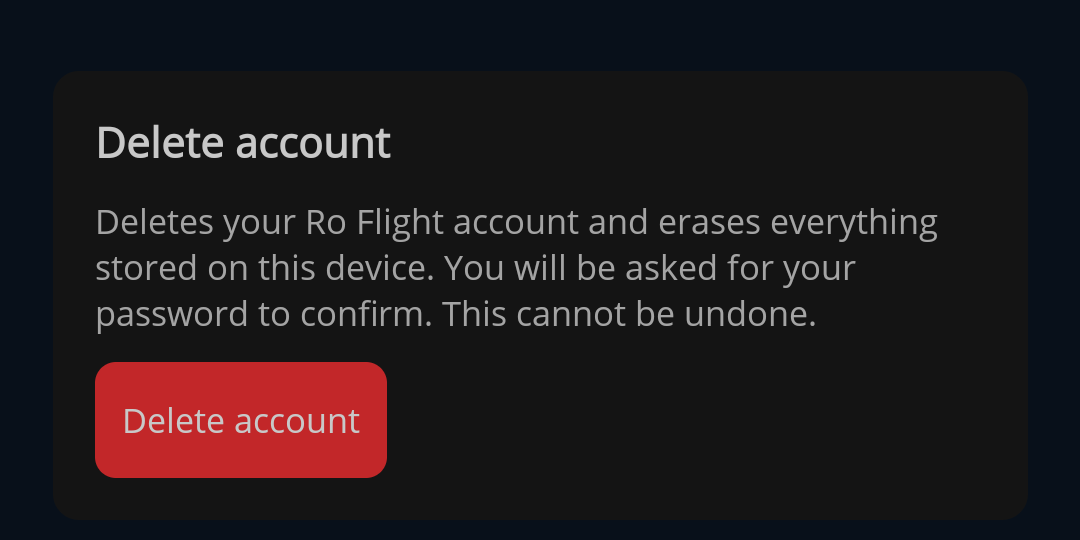
Ștergerea face două lucruri deodată:
- Contul tău este șters — adresa de e-mail, parola și licența.
- Tot ce este pe acest dispozitiv este șters — profilurile de aeronavă, planurile de zbor, profilul de pilot, conturile de portal și setările.
Un singur lucru rămâne, în mod intenționat, și este în favoarea ta: o înregistrare care nu identifică pe nimeni — fără e-mail, fără nume — ține evidența dreptului de licență în sine. Dacă te înregistrezi din nou cu aceeași adresă, licența rămasă vine înapoi cu tine, în loc să se piardă.
Ștergerea contului nu anulează niciun plan de zbor pe care l-ai depus deja. Un plan depus la ROMATSA sau la AACR trăiește în sistemul lor, nu pe dispozitivul tău — închide-l sau anulează-l întâi la autoritate (vezi Flight Plan Detail), fiindcă, odată șterse planurile de pe dispozitiv, aplicația nu mai poate face asta pentru tine.