Flight Plans
⚠ În lucru. Manualul este încă în scriere — unele secțiuni pot fi
incomplete sau se pot schimba pe măsură ce aplicația evoluează.
Ecranul principal al aplicației: lista tuturor planurilor de zbor pe care le-ai salvat, fiecare cu starea lui de acum. De aici pornești un plan nou sau deschizi unul existent ca să îl vezi, să îl depui sau să îl închizi.
Cum ajungi aici: este ecranul Home → Flight Plans — primul lucru pe care îl vezi după autentificare.
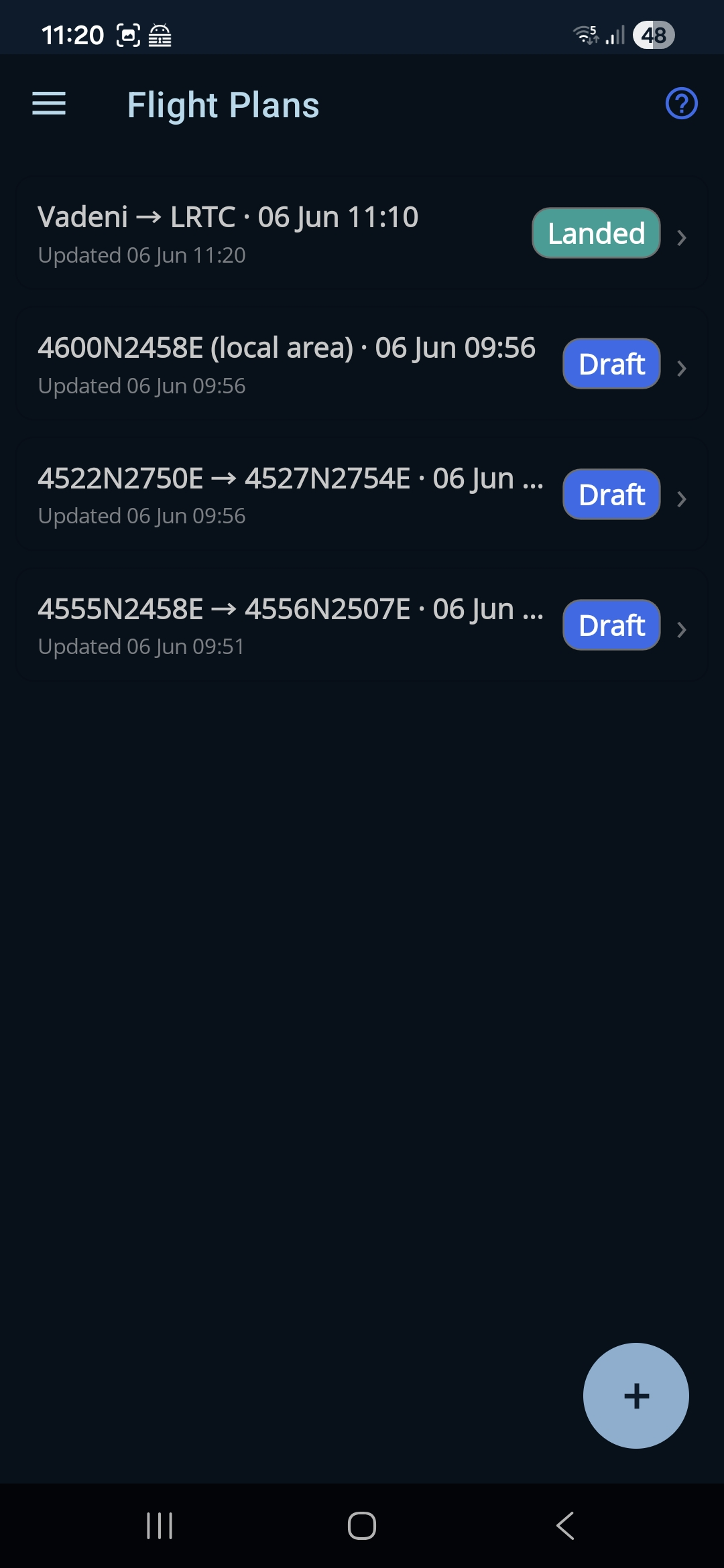
Ce este pe ecran
- Iconița de ajutor (?). În bara de sus; arată sau ascunde o scurtă amintire, pe ecran, a ceea ce face acest ecran.
- Import (GPX). Iconița de import din bara de sus deschide un selector de fișiere; alege o rută GPX (de exemplu una exportată din SkyDemon) și devine o ciornă nouă, deschisă în formular. Vezi pagina Import și export.
- Când nu ai niciun plan. Ecranul scrie „No flight plans yet. Tap + to create one.”
- Cardurile planurilor. Fiecare plan salvat apare ca un card cu ruta lui (plecare → destinație), un rând „Updated …” care îți spune când a fost modificat ultima oară și o etichetă de stare colorată. Apasă pe un card ca să îi deschizi pagina de detalii.
- Butonul +. Butonul rotund din colțul din dreapta-jos. Creează o ciornă nouă de plan (completată deja cu data și ora curente și cu viteza de croazieră a aeronavei tale active) și deschide formularul planului de zbor.
Etichetele de stare
Eticheta de pe fiecare card îți spune unde se află planul în viața lui:
- Draft — creat, dar încă nedepus; îl mai poți modifica.
- Submitted — depus la o autoritate aeronautică. Deschide planul ca să vezi la care și cu ce număr de referință.
- Landed — ai trimis confirmarea aterizării.
- Cancelled — planul depus a fost anulat.
← Înapoi la manual · Urmează: Formularul planului de zbor →