Instalare: iei aplicația și îți pregătești contul
Tot ce îți trebuie ca să pornești Ro Flight pe telefon — îți faci contul, instalezi aplicația și te autentifici. După ce ai intrat, Getting Started te duce prin depunerea primului plan de zbor.
Pasul 1 — Îți faci contul Ro Flight (pe acest site)
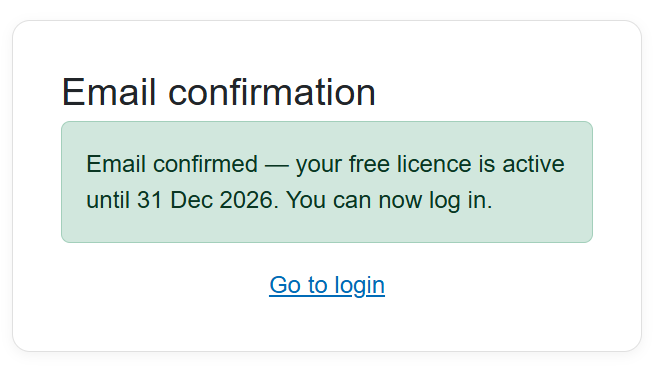
Ro Flight are nevoie de o licență, legată de un cont pe care ți-l faci aici, pe site. În perioada Early Access poți lua licența gratuită care ține până la sfârșitul acestui an: 31/12/2026.
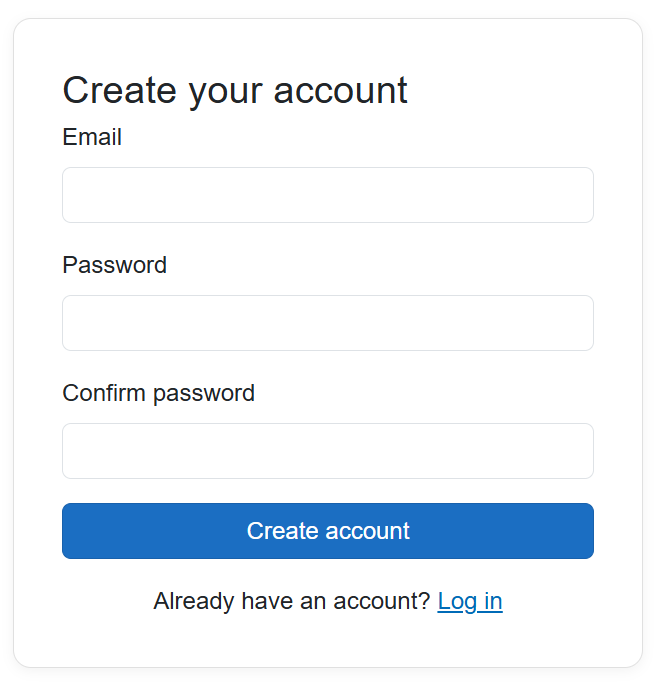
- Deschide pagina Cont nou.
- Scrie-ți adresa de e-mail, o parolă, confirmă parola, apoi apasă Creează contul.
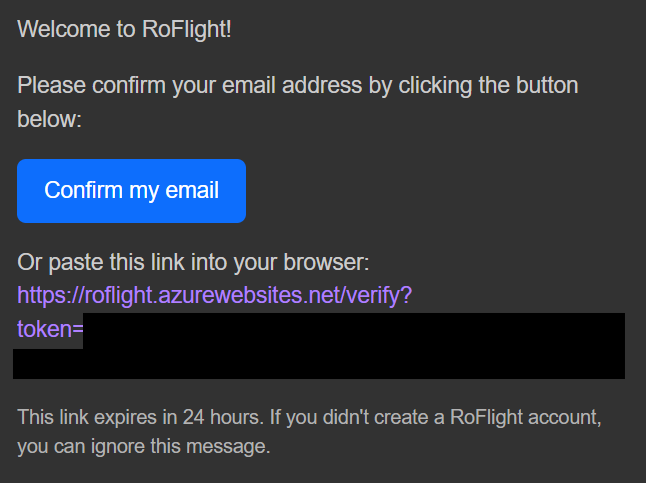
- Îți trimitem un link de confirmare de la pedas.software@gmail.com (dacă nu ajunge, caută și în folderul spam). Apasă linkul — deschide pagina de confirmare a adresei și îți activează licența gratuită.
- Întoarce-te la pagina de autentificare și intră o dată în cont, ca să vezi că funcționează.
Poți vedea oricând starea licenței și câte dispozitive ai activat, în pagina contului.
Pasul 2 — Instalezi aplicația pe dispozitiv
Instalează Ro Flight din magazinul de aplicații al dispozitivului tău — Google Play pe Android, App Store pe iPhone și iPad. Este aceeași aplicație pe amândouă, cu aceleași funcții.
Pasul 3 — Te autentifici
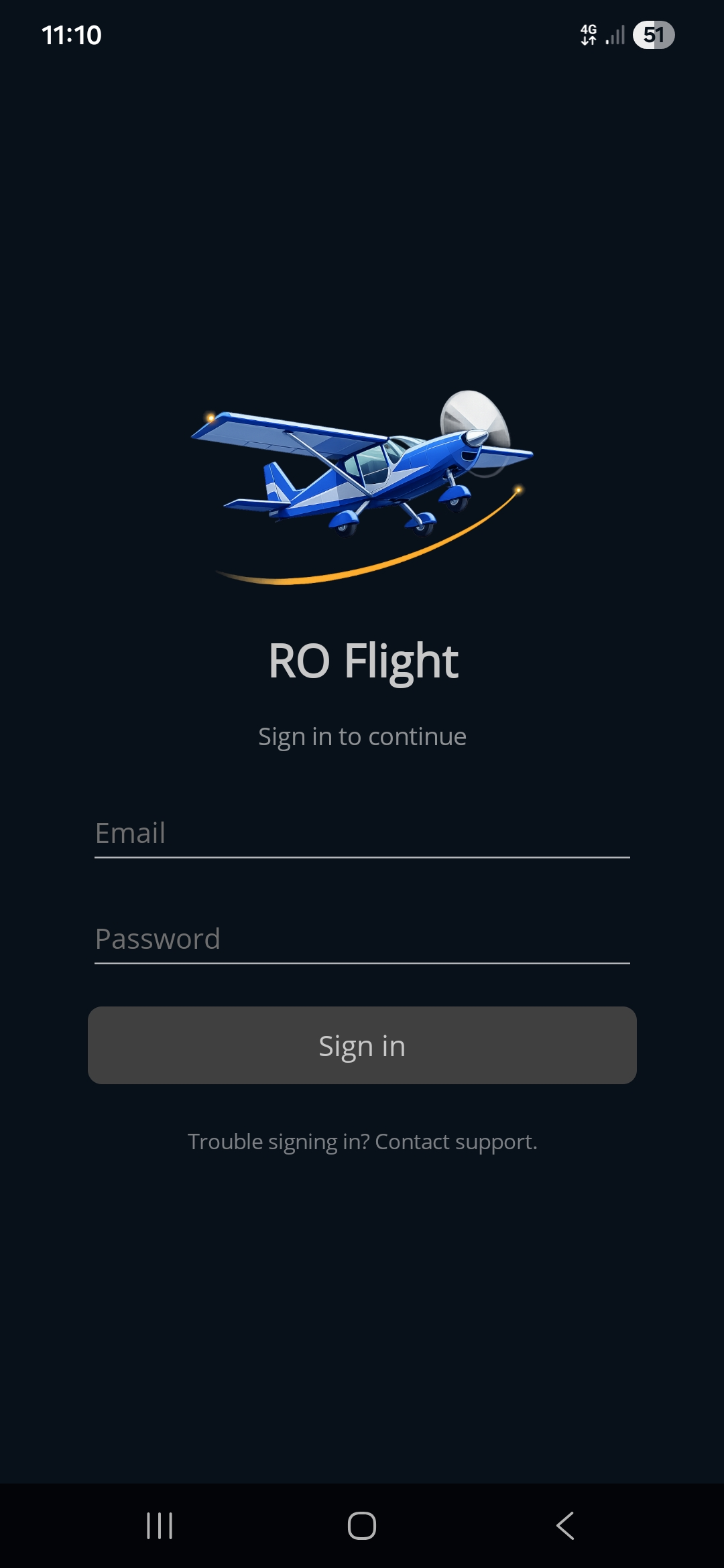
Deschide aplicația. În ecranul Sign In, scrie aceeași adresă de e-mail și aceeași parolă cu care ți-ai făcut contul, apoi apasă Sign in. După ce licența îți este verificată, aplicația se deschide la planurile tale de zbor și poți trece la datele de pilot și de aeronavă.
Vezi pagina Sign In pentru detalii.
Ce urmează
Cu aplicația instalată și cu tine autentificat, continuă cu Getting Started — îți pregătește Pilot Profile (inclusiv contul la autoritate) și Aircraft Profile, apoi depune un plan de zbor de la cap la coadă.