Sign In
Primul ecran pe care îl vezi când deschizi Ro Flight. Te autentifică cu contul tău Ro Flight și verifică dacă licența îți este activă. După ce te-ai autentificat, aplicația ține minte și, la deschiderile următoare, merge direct la planurile tale de zbor.
Cum ajungi aici: apare de la sine când deschizi aplicația și nu ești deja autentificat.
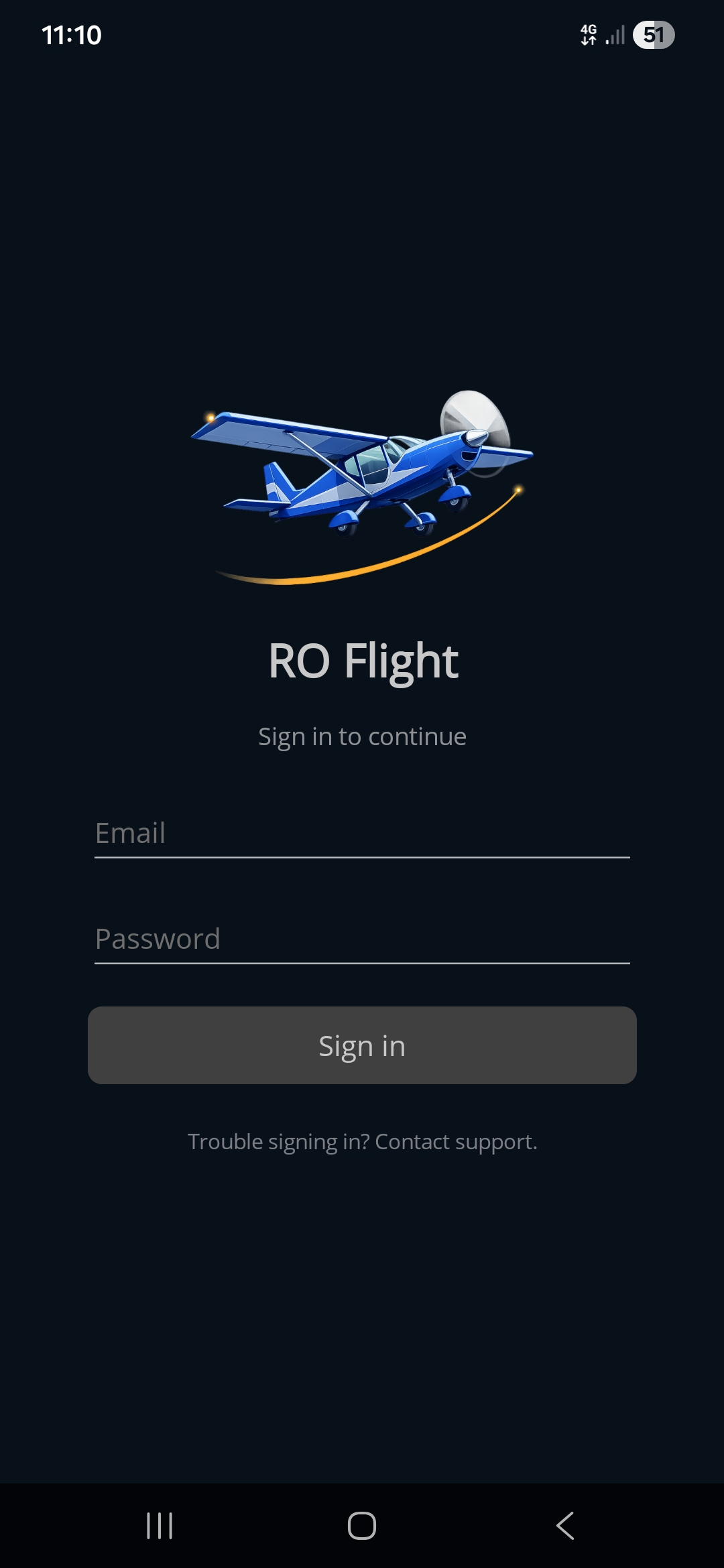
Ce este pe ecran
- Verificarea de la pornire. Când pornește aplicația, se vede scurt o rotiță, cât timp se caută o licență existentă. Dacă ai deja licență, ecranul acesta este sărit — nu mai trebuie să te autentifici din nou.
- Email. Adresa de e-mail a contului tău Ro Flight (cea cu care te-ai înregistrat pe site).
- Password. Parola contului. Este ascunsă în timp ce o scrii.
- Butonul Sign in. Îți verifică datele și licența. Cât lucrează, se vede o rotiță. Dacă totul e în regulă, aplicația se deschide la ecranul Flight Plans.
- Mesajul de eroare. Dacă adresa sau parola este greșită, ori dacă verificarea licenței nu reușește, un mesaj roșu îți spune ce nu a mers, ca să poți încerca din nou.
- Create Free Account. Deschide formularul de cont fără să ieși din aplicație — vezi mai jos. Dacă ți-ai făcut deja cont pe site, nu ai nevoie de el: autentifică-te cu acela.
- „Trouble signing in? Contact support.” Apasă aici ca să ți se deschidă aplicația de e-mail, cu mesajul deja adresat către suport.
Cum îți faci cont din aplicație
Apasă Create Free Account pe ecranul Sign In. Scrie-ți adresa de e-mail, o parolă și aceeași parolă încă o dată, pentru confirmare, apoi apasă Create Free Account. Orice nu convine formularului este semnalat sub câmpul căruia îi aparține.
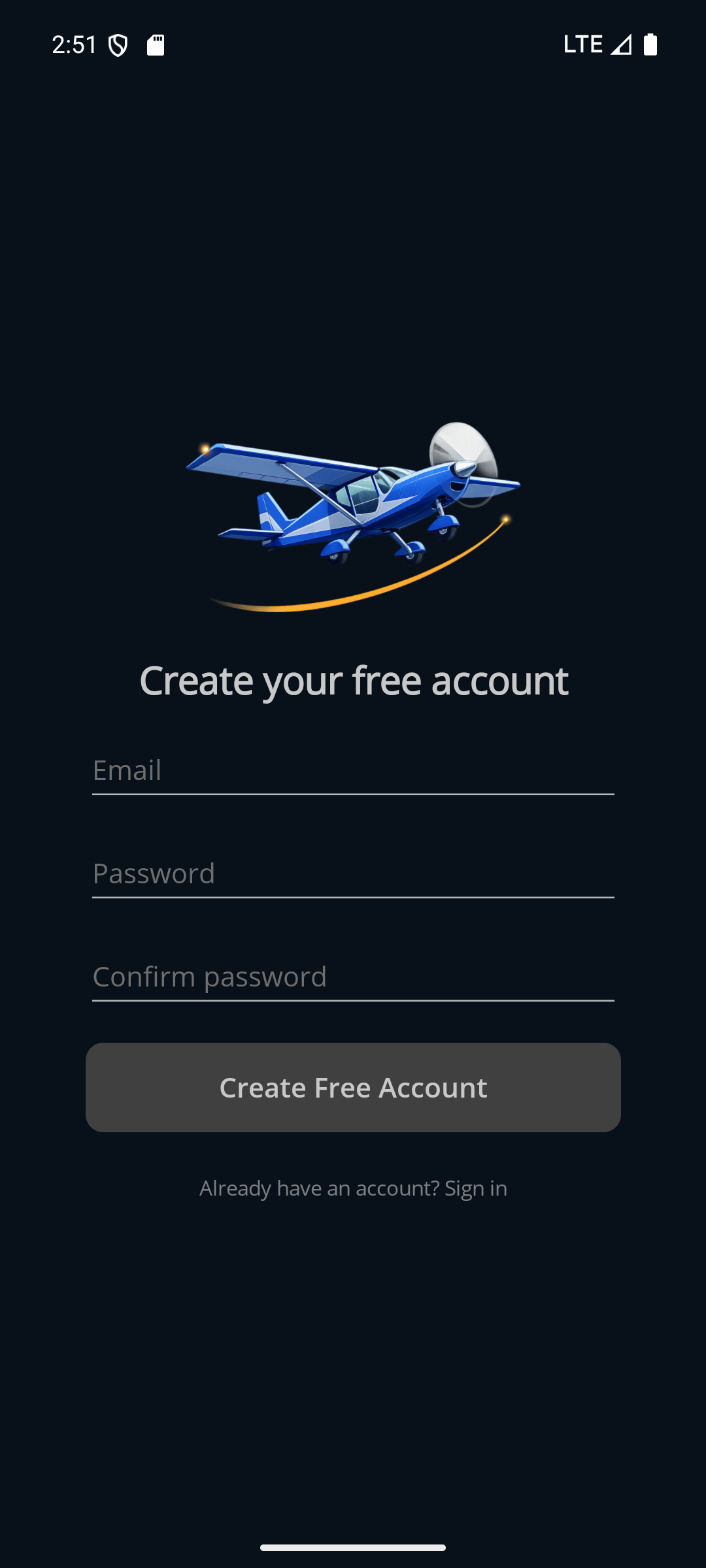
Dacă a mers, formularul este înlocuit de un panou de confirmare: am trimis un link pe adresa pe care ai dat-o, iar contul devine folosibil după ce îl apeși. Dacă nu ajunge, caută și în folderul spam. Închizi panoul și ești înapoi la Sign In, cu adresa deja completată — scrie-ți parola și autentifică-te.
Îți poți face contul și pe acest site, pe pagina de înregistrare — este unul și același cont, așa că folosește ce îți este mai la îndemână. Instalare arată drumul prin site.
Cum ieși din cont
Sign Out este ultima intrare din meniul lateral. Deconectează acest dispozitiv și te duce înapoi la ecranul Sign In; planurile de zbor, aeronavele și profilul de pilot rămân pe dispozitiv. Ca să ștergi contul însuși, vezi Date — salvare și mutare.
← Înapoi la manual · Urmează: Pilot Profile →