Feedback
Report a problem, send us a message or suggest a feature, and it comes straight to us. Now and then a short survey about the app waits here too.
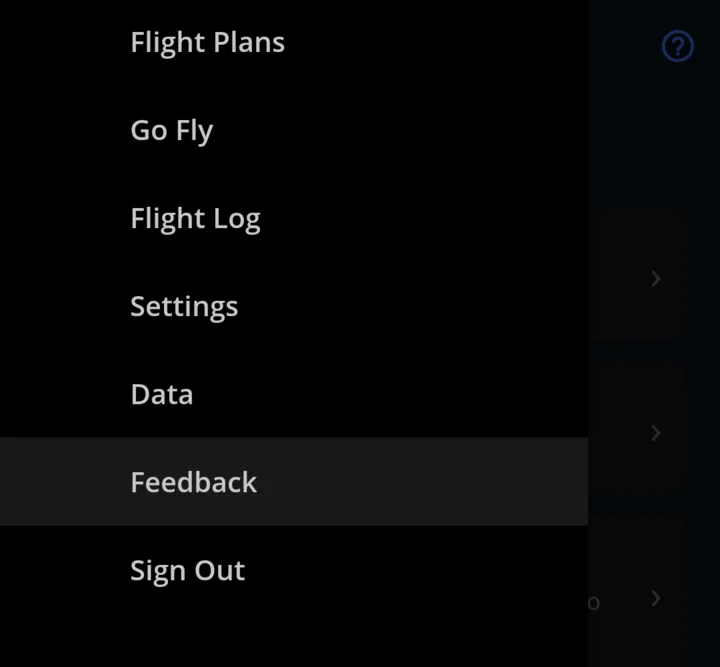
How to get here: open the flyout menu and choose Feedback, just above Sign Out.
Tap the help (?) icon in the top bar to show or hide the on-screen hint.
What to send
The screen opens on What would you like to send? and one card for each kind of message:
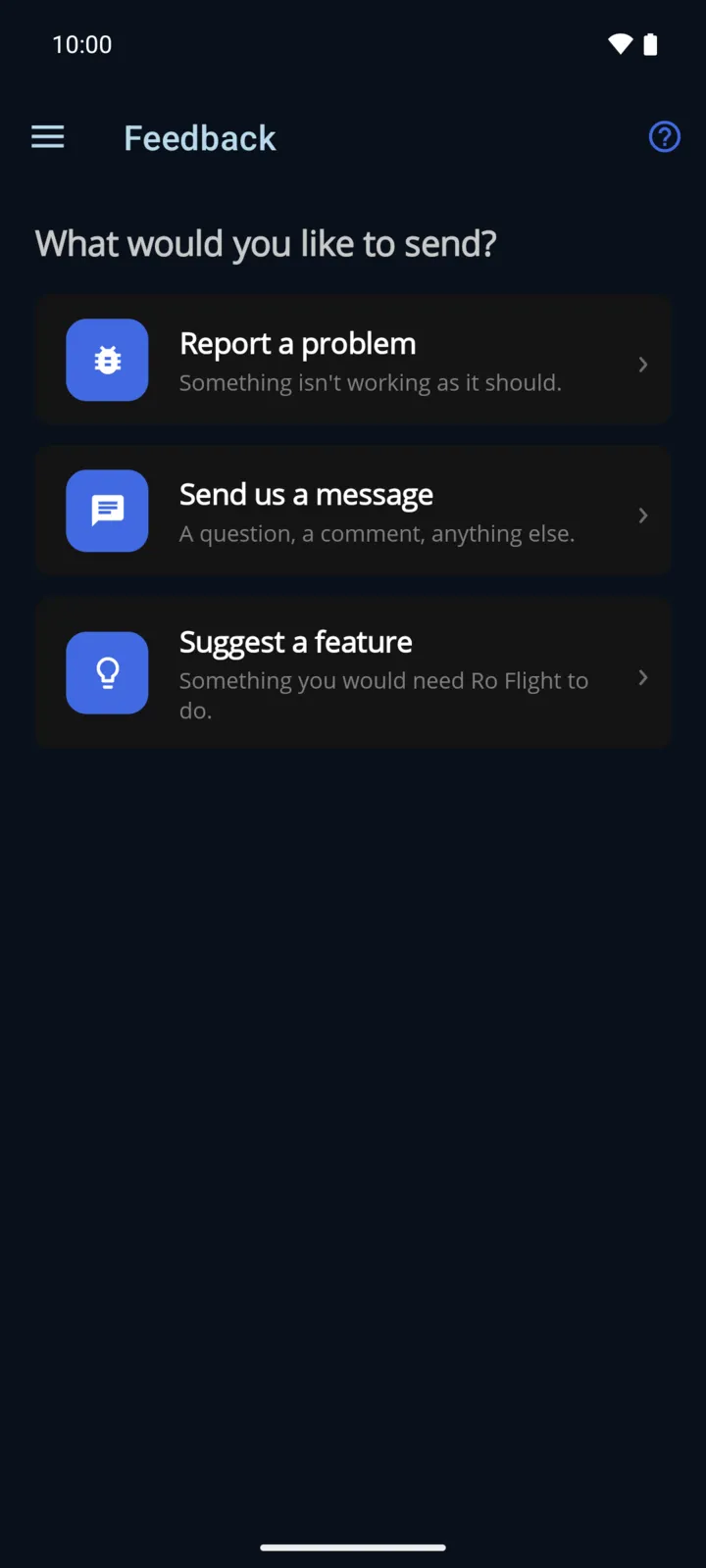
- Report a problem — something isn't working as it should. The only one that can carry a screenshot.
- Send us a message — a question, a comment, anything else.
- Suggest a feature — something you would need Ro Flight to do.
- Take a survey — a fourth card, under the other three, only while a survey is waiting for you. See Surveys below.
What you send reaches us with your Ro Flight account's e-mail address, so there is no need to write it in. If the screen shows only Feedback needs an account, you are not signed in with a Ro Flight account: sign out and sign in with yours.
Writing it
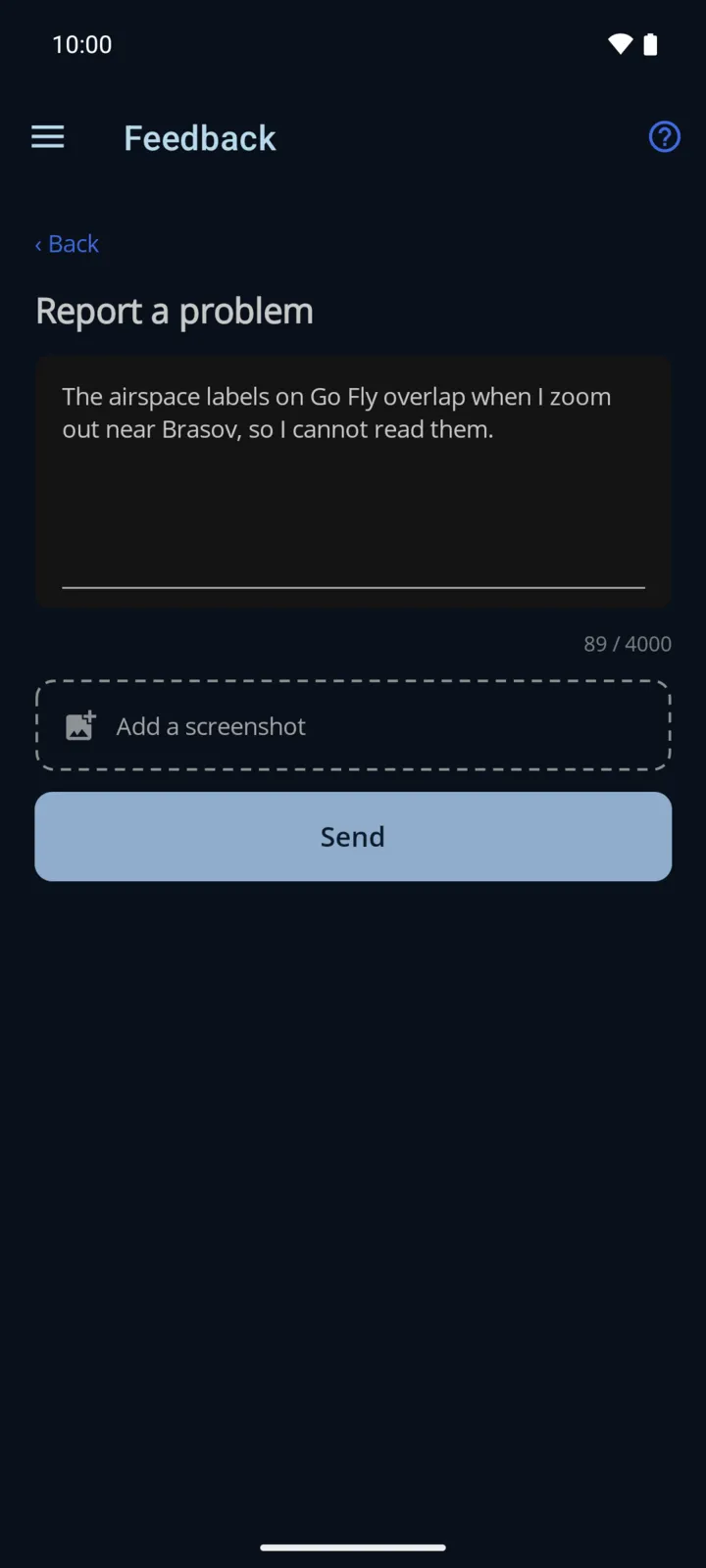
- Tap a card and a text box opens, titled with what you chose. Its grey hint says what helps most — for a problem, What went wrong, and what were you doing when it happened? Name the screen and what you tapped.
- The counter under the box goes up to 4000 characters and turns red close to the limit. Write at least a short sentence: under ten characters the box says Please add a little more detail. and Send stays greyed out.
- Press Send. The screen says Thank you., and Back to Feedback returns to the cards.
- ‹ Back, at the top, returns to the cards without sending and keeps what you wrote.
Your words are kept until they are sent. Leave the screen or the app part-way through — a phone call, a look at another app — and the text is there when you come back, with a problem report's screenshot. Once sent, the box is empty again.
Adding a screenshot
A problem report can carry one picture. A screenshot of what went wrong is often the quickest way to show it.
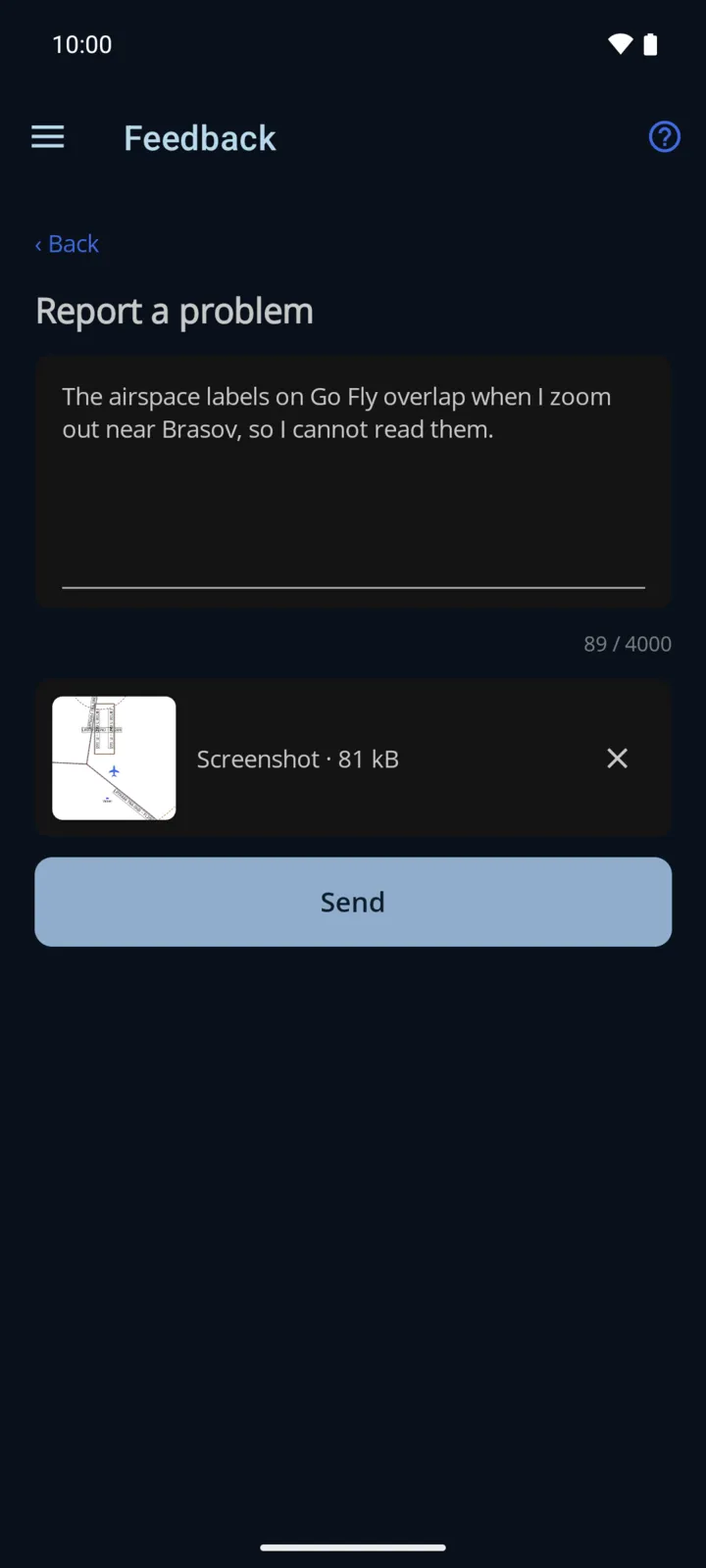
- Tap Add a screenshot and your phone's own photo picker opens; choose one picture. Ro Flight asks for no permission and sees only the picture you choose.
- The picture takes the card's place, with its size beside it (Screenshot · 81 kB). Tap ✕ to remove it, then add a different one.
- Before it is sent, the picture is scaled down to at most 1600 pixels on its long side and saved again on your phone. That removes the location and camera details a photo carries, so what reaches us is the picture alone.
To take a screenshot, press the power and volume-down buttons together on most Android phones, or the side button and volume-up on an iPhone. If Ro Flight says That image is too large. Try a smaller one. or We couldn't read that image. Try a different one., choose another picture; a screenshot taken on the phone is the safest choice.
If it doesn't send
One red line appears under Send, and your words stay in the box. Nothing is sent again by itself: press Send once more when the line says to.
- We couldn't send it just now. Please try again later. — no connection, or our server did not answer. Try again once you have signal.
- Your Ro Flight session has expired. Sign in again and try once more. — sign out from the menu and sign back in. Your text is still there when you open Feedback again.
- You have sent a few messages already. Please try again in a little while. — wait ten minutes, then send.
- We couldn't send that. Please try again, or shorten it a little.
Surveys
Now and then we ask a few short questions about the app. While a survey is waiting for you, the menu reads Feedback •, and a Take a survey card with the same dot, outlined in blue, sits under the other three with the survey's title beneath it. Answering is optional, and each survey is answered once per account.
- Ratings — tap a number. Where it is offered, tap Haven't used it instead for something you have not tried.
- Choices — tap one answer, or several where the question says Choose up to 2.
- Written answers — type in the box; it has its own counter.
- Where an item has an ⓘ beside it, tap it for a short explanation.
- A line above Send counts the questions still to answer (2 questions left); optional ones are not counted. Send works once none are left. If every question is optional, answer at least one — the line says Answer at least one question to send.
Answer a survey in one go. A half-answered survey is not kept: ‹ Back, leaving the screen or closing the app starts it over. A message you were writing is not affected.
Once you press Send, the card and the dot in the menu go. If the survey closed before you sent it, the screen says This survey has closed.; if your account has already answered it, You have already answered this survey. Either way, the card goes too.
← Back to the manual · See also: What's New