Sign In
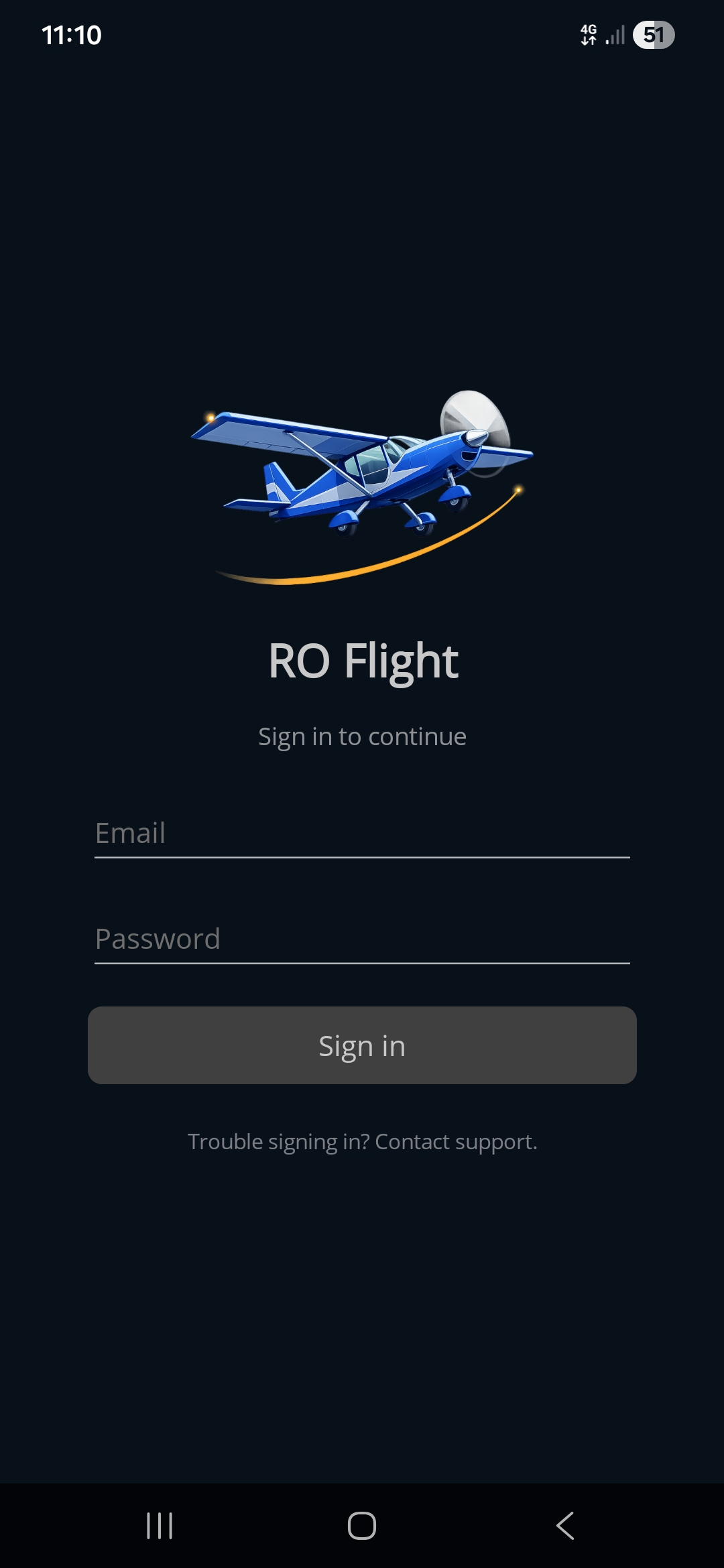
The first screen you see when you open Ro Flight. It logs you in with your Ro Flight account and checks that your licence is active. Once you're signed in, the app remembers it and goes straight to your flight plans on future launches.
How to get here: it appears automatically when you open the app and aren't already signed in.
What's on the screen
- Startup check. When the app launches it briefly shows a spinner while it checks for an existing licence. If you're already licensed, it skips straight past this screen — no need to log in again.
- Email. The email address of your Ro Flight account (the one you registered on the website).
- Password. Your account password. It's hidden as you type.
- Sign in button. Checks your credentials and licence. A spinner shows while it works. On success the app opens to the Flight Plans screen.
- Error message. If your email or password is wrong, or the licence check fails, a red message explains what went wrong so you can try again.
- Create Free Account. Opens the account form without leaving the app — see below. If you already made an account on the website, you don't need this: sign in with it.
- “Trouble signing in? Contact support.” Tap this to open your email app with a pre-addressed message to support.
Creating an account in the app
Tap Create Free Account on the Sign In screen. Enter your email, a password, and the same password again to confirm, then tap Create Free Account. Anything the form doesn't like is flagged under the field it belongs to.
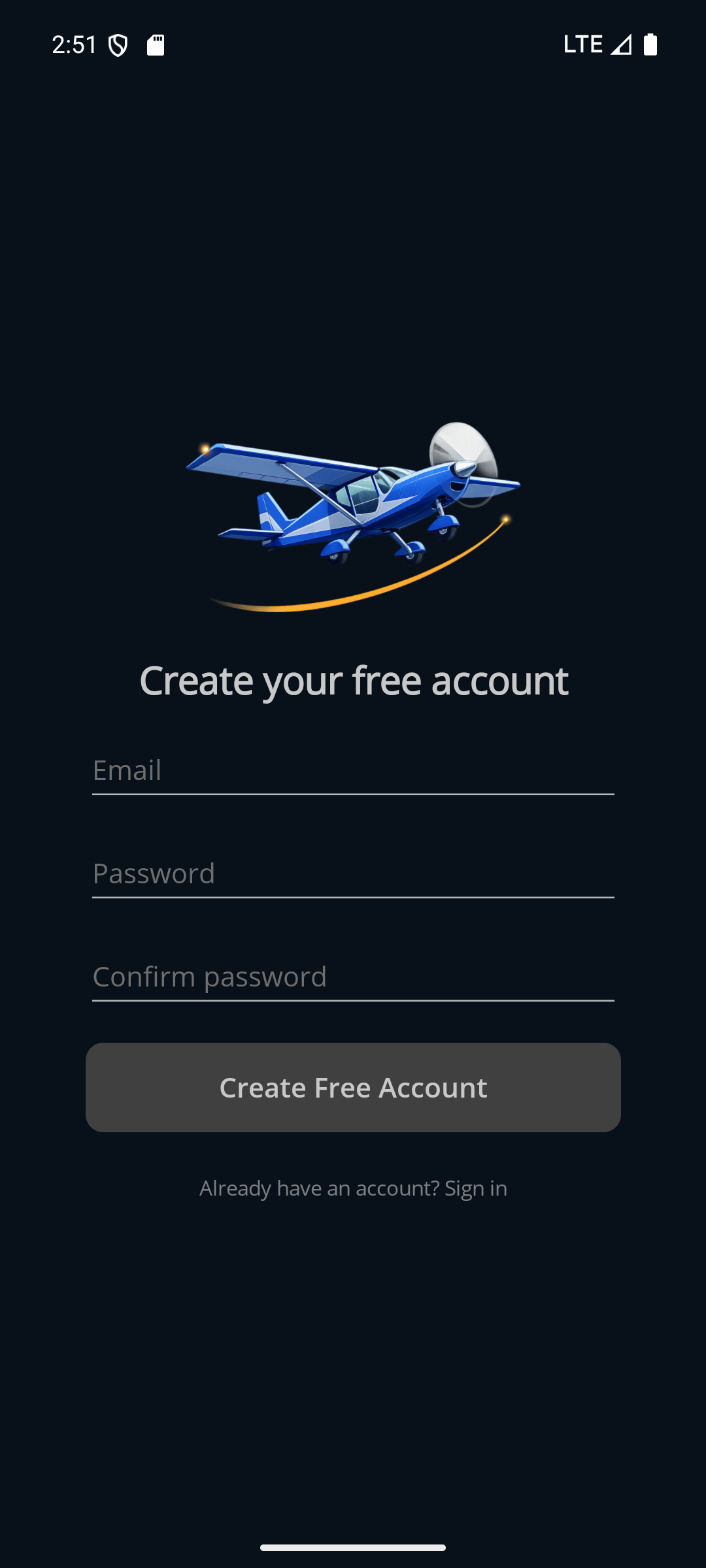
On success the form is replaced by a confirmation panel: we've sent a link to the address you gave, and the account becomes usable once you click it. Check your spam folder if it doesn't arrive. Close the panel and you're back at Sign In with your address already filled in — enter your password and sign in.
You can also create an account on this website instead, on the registration page — the two are the same account, so use whichever is convenient. Installation covers the website route.
Signing out
Sign Out is the last item in the flyout menu. It signs this device out and returns you to the Sign In screen; your flight plans, aircraft and pilot profile stay on the device. To remove the account itself, see Data — Back up & Transfer.
← Back to the manual · Next: Pilot Profile →