Flight Log
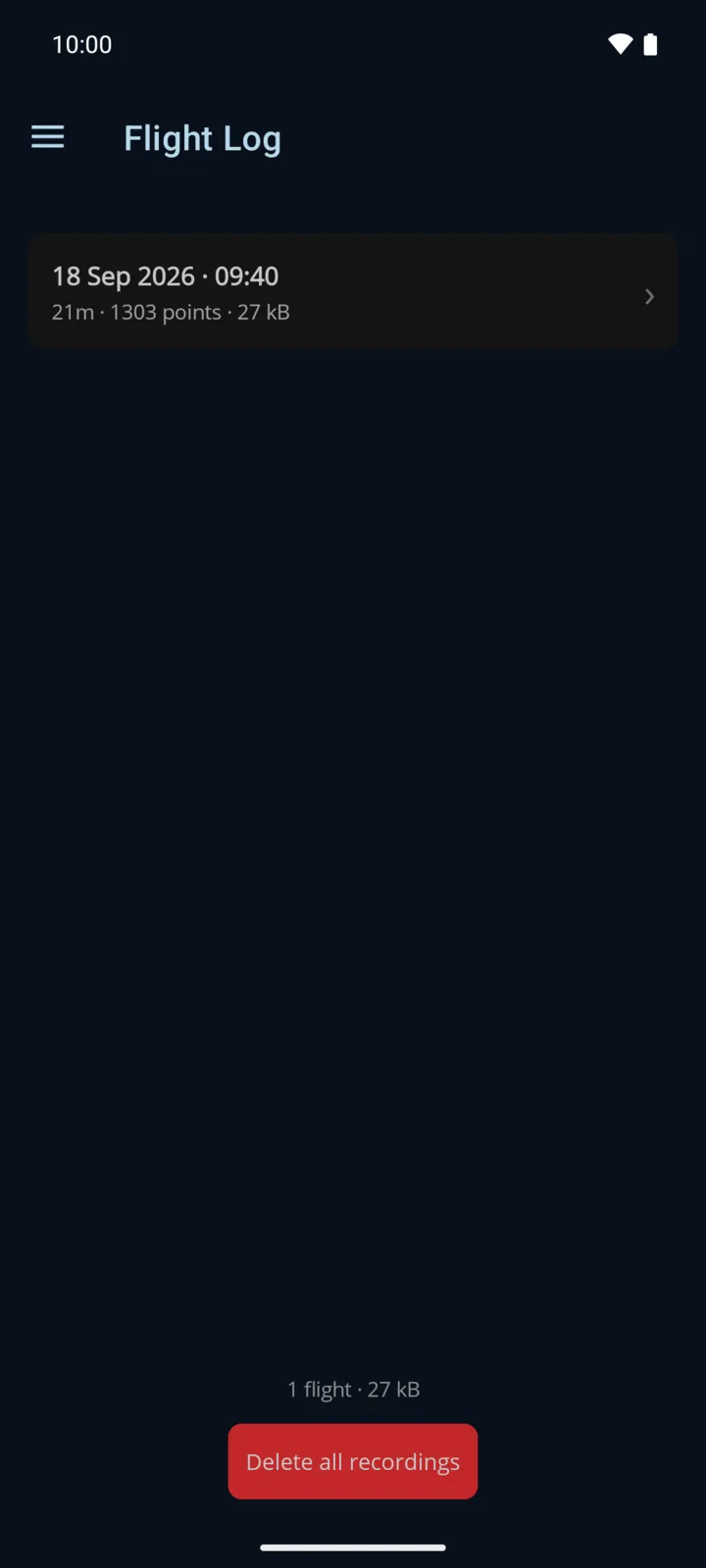
Every flight Ro Flight has recorded on this device, newest first. Tap a row to open its report; from here you can also delete recordings, one at a time or all at once.
How to get here: open the flyout menu and choose Flight Log, between Go Fly and Settings.
An open recording
If a flight is currently being recorded, a banner at the top of the screen says Recording in progress with its own Stop button. This is the same recording as the one you started on Go Fly — it is offered here too because a recording that never got a proper End Flight (an app closed by mistake, a GPS that never came back) still needs a certain way to close it, and the Flight Log is reachable even when Go Fly is not open.
Each row
- Date and time the flight started, and how long it lasted.
- How much room it takes on your device, in kB or MB.
- A gap warning, in amber, when part of the flight was not recorded — for example the app was closed mid-flight and reopened later. It says how much time is missing.
- Tap the row to open that flight's report.
With nothing recorded yet, the screen reads "No recorded flights yet. Start a recording from the Go Fly screen."
Deleting recordings
Below the list, a total shows how much room every recording together takes — flights are by far the most storage-hungry thing Ro Flight keeps. Delete all recordings removes every one of them; it asks you to confirm first, and cannot be undone. To remove a single flight, open its report and delete it from there (see Flight Report).
← Back to the manual · Next: Flight Report →