Data — Back up & Transfer
The Data page bundles everything you've set up in Ro Flight — your aircraft profiles, your saved flight plans, and your pilot profile — into a single file. Use it to keep a backup, or to move everything across when you switch to a new device.
How to get here: open the flyout menu and choose Data.
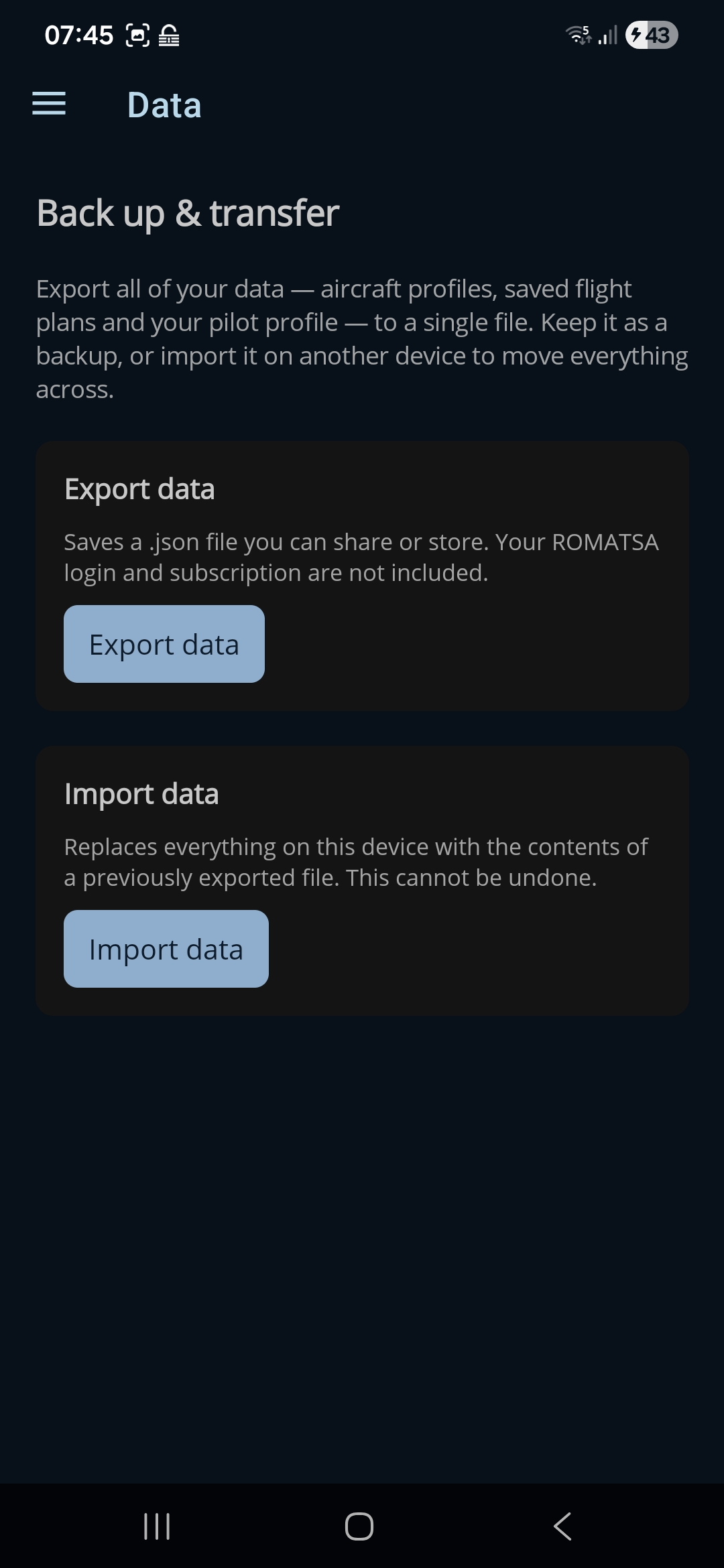
Export data
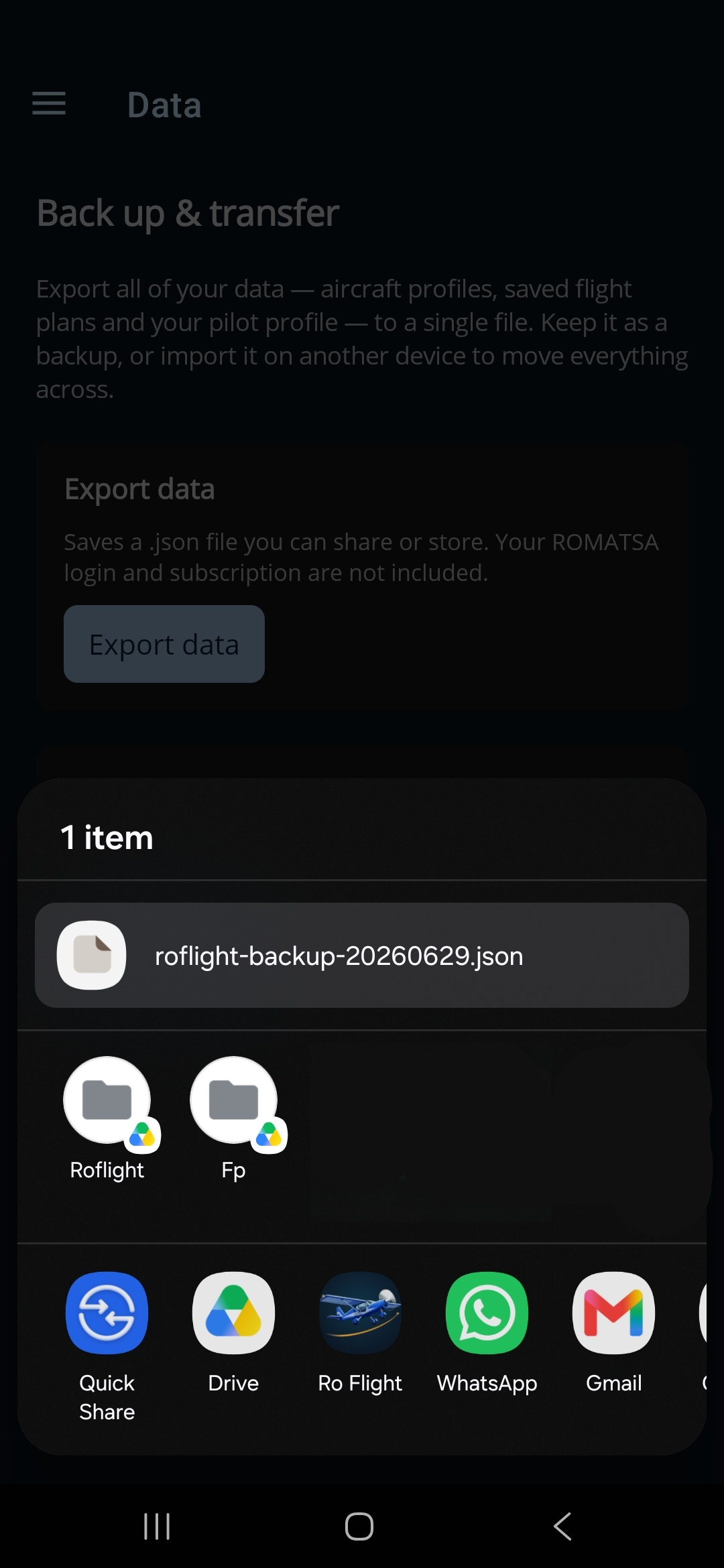
Tap Export data to write everything out as a .json file. Ro Flight
hands the file to your device's share sheet as roflight-backup-YYYYMMDD.json,
so you can save it to Drive or Files, email it to yourself, or send it straight to another
device — wherever you want to keep the backup.
Import data
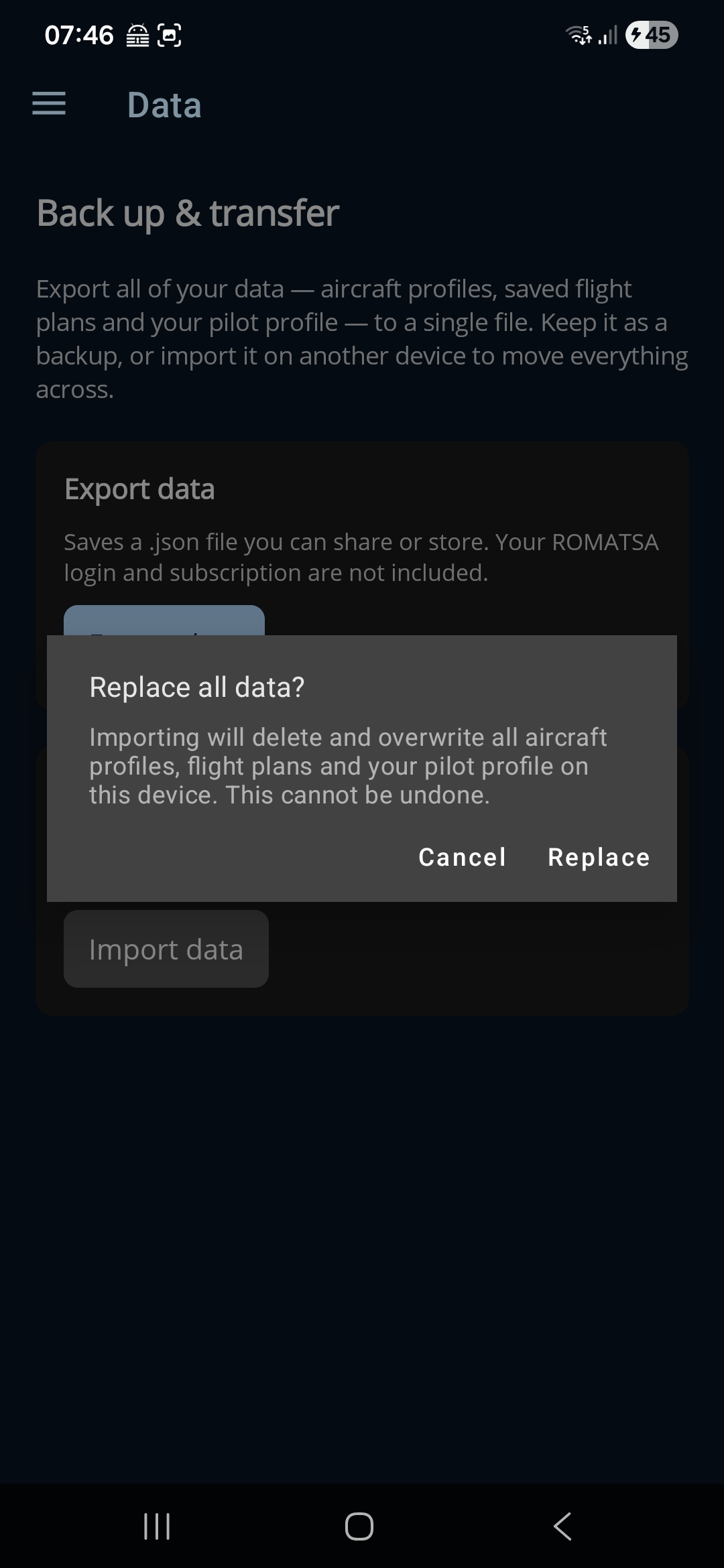
Tap Import data and pick a previously exported backup file. Because importing replaces everything currently on the device, Ro Flight first asks you to confirm with a “Replace all data?” dialog — this overwrites all aircraft profiles, flight plans, and your pilot profile, and cannot be undone. Choose Replace to go ahead, or Cancel to back out.
Importing clears the “login verified” mark for both authorities, even on the same device. So after an import, go to the Pilot Profile page, enter your login for each authority you file with, and run that section's Test Login again before you submit anything.
Delete account
The third card removes your Ro Flight account altogether. Tap Delete account, enter your password to confirm that it's you, and confirm the warning. This cannot be undone.
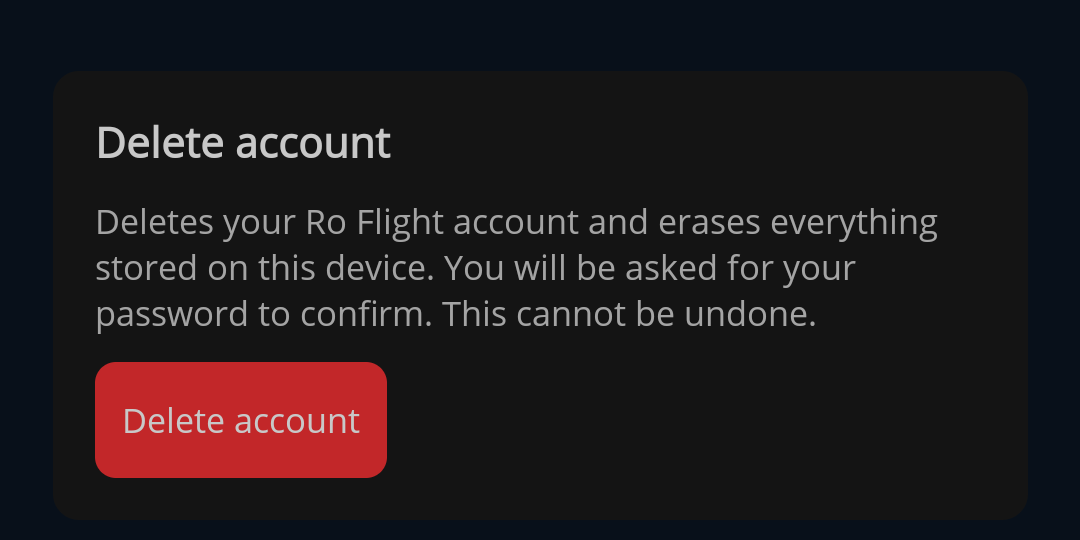
Deleting does two things at once:
- Your account is erased — your email address, your password and your licence.
- Everything on this device is erased — aircraft profiles, flight plans, pilot profile, portal logins and settings.
One thing deliberately survives, and it works in your favour: a record that identifies nobody — no email, no name — keeps track of the licence entitlement itself. If you register again with the same address, any remaining licence comes back with you rather than being lost.
Deleting your account does not cancel any flight plan you have already filed. A plan filed with ROMATSA or AACR lives on their system, not on your device — close or cancel it with the authority first (see Flight Plan Detail), because once the plans are erased from the device the app can no longer do it for you.