Pilot Profile
Where you store your pilot contact details and your flight-authority logins. The contact details go onto every flight plan you file; the logins let the app file plans on your behalf. There are two, one per filing channel — ROMATSA and AACR (vfr.caa.ro) — and you only need the one(s) you actually use. Everything you enter here is stored on your device: each password is kept in the phone's encrypted secure storage and is only ever sent to the portal it belongs to, never to us.
How to get here: open the flyout menu and choose Settings, then tap the Pilot segment at the top.
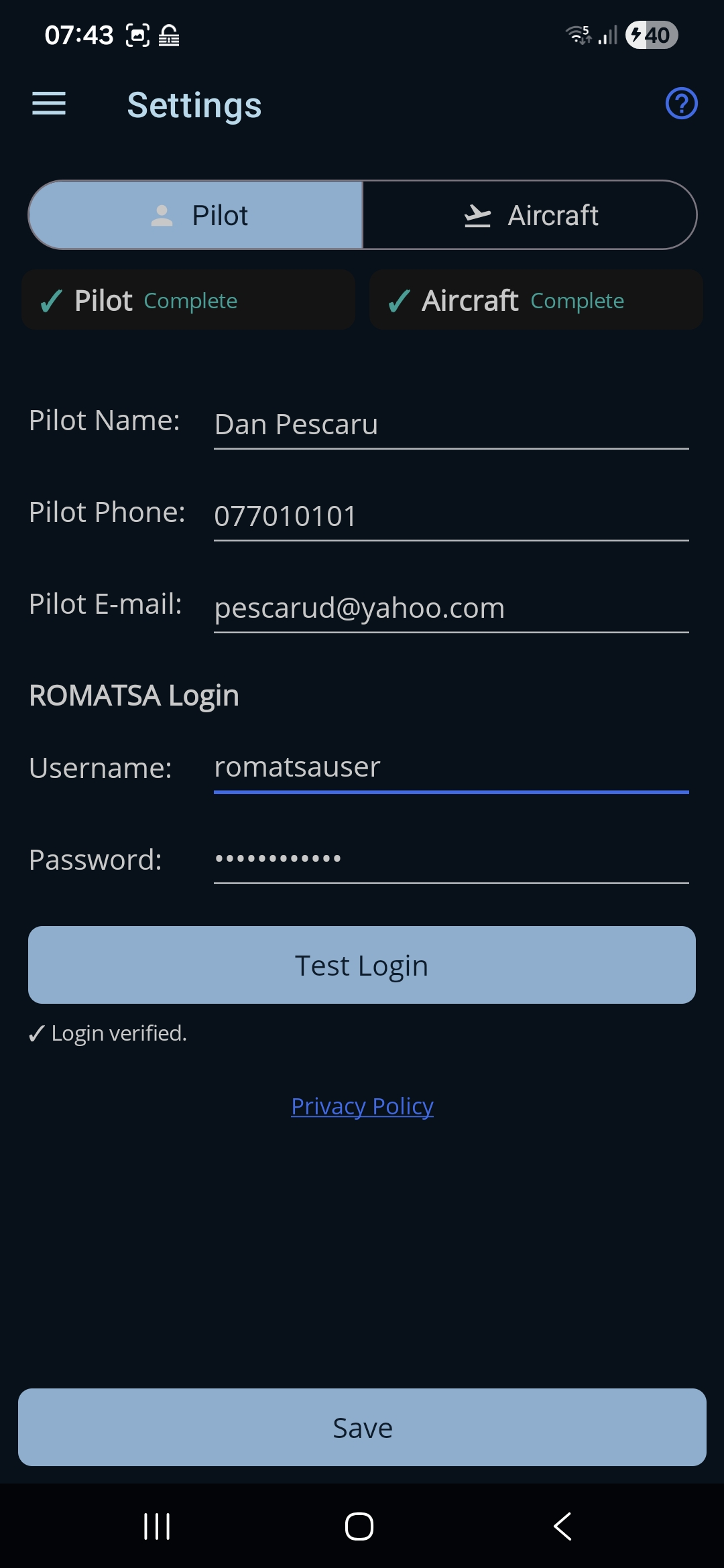
Tap the help (?) icon in the top bar at any time to show or hide a short on-screen reminder of what this page does.
Pilot section
- Pilot Name. Your name as it should appear on the flight plan. Required (at least 3 characters).
- Pilot Phone. A contact phone number (opens a telephone keypad). Required (at least 7 characters).
- Pilot E-mail. A contact email address (opens an email keyboard). Required, and must contain an “@” and a “.”.
If a field is invalid, a red note appears under it and Save stays disabled until it's fixed.
ROMATSA Login section
Your account on flightplan.romatsa.ro, used to file ICAO flight plans.
- Username. Your ROMATSA flight-plan account username.
- Password. Your ROMATSA password (hidden as you type).
- Test Login. Checks the username and password against ROMATSA. It's available once both fields are filled in, and shows a status line with a ✓ on success or an ✗ with the reason on failure.
- Login status. A short line under the button showing the result of your last Test Login — ✓ Login verified. or an ✗ with the reason.
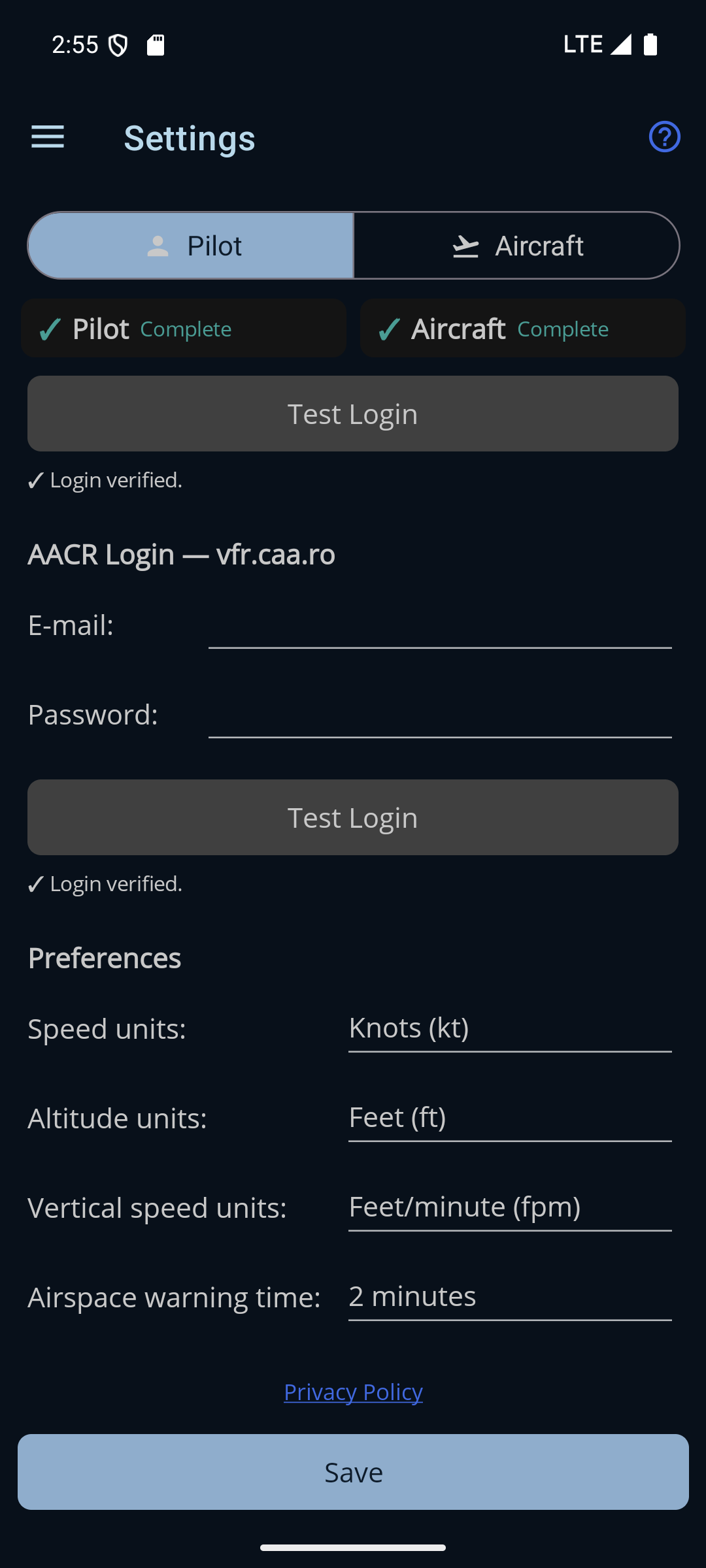
AACR Login — vfr.caa.ro
Your account on vfr.caa.ro, used to file VFR notifications for flights conducted entirely in Class G airspace. This one is optional — fill it in only if you use that channel.
- E-mail. The email address you sign in to vfr.caa.ro with.
- Password. Your vfr.caa.ro password (hidden as you type).
- Test Login. Its own button, with its own status line, working exactly like the ROMATSA one above.
The ✓ Complete chip deliberately ignores the AACR login: it goes green once your pilot details and your ROMATSA login are in place. A pilot who never files Class-G VFR notifications shouldn't be chased about an account they don't need.
Preferences
Below the logins is a Preferences block. The first three set the units used throughout the app; changing any of them takes effect immediately and relabels every speed and altitude everywhere — the flight plan form, the plan detail summary, the aircraft profile, the map, and the Go Fly instrument strip. The fourth is not a unit but is the same kind of setting: picked once and then forgotten.
Everything in this block saves itself the moment you change it — it does not wait for the Save button at the bottom of the page.
- Speed units. Choose Knots (kt) or Kilometers/hour (km/h); used for every cruise speed and for the in-flight ground speed.
- Altitude units. Choose Feet (ft) or Meters (m); used for every altitude.
- Vertical speed units. Choose Feet/minute (fpm) or Meters/second (m/s); used for the V/S (climb / descent rate) readout on the Go Fly map. The default is fpm.
- Airspace warning time. How far ahead the Go Fly map warns you that your track would take you into an active airspace — 1, 2, 3 or 4 minutes. The default is 2 minutes. There is deliberately no Off here: switching alerts off is done on the in-flight Settings card, which is what you can reach in the air, and having two controls that could each silence the other would be worse than having one.
- Privacy Policy. Opens the Ro Flight privacy policy in your browser.
Saving
- Save. The one button at the bottom of the Settings page. It saves both sections — your pilot details and both sets of portal credentials, and the aircraft profile — and confirms with “Pilot and Aircraft saved.” It's enabled only when all the pilot fields are valid.