Flight Plan Detail
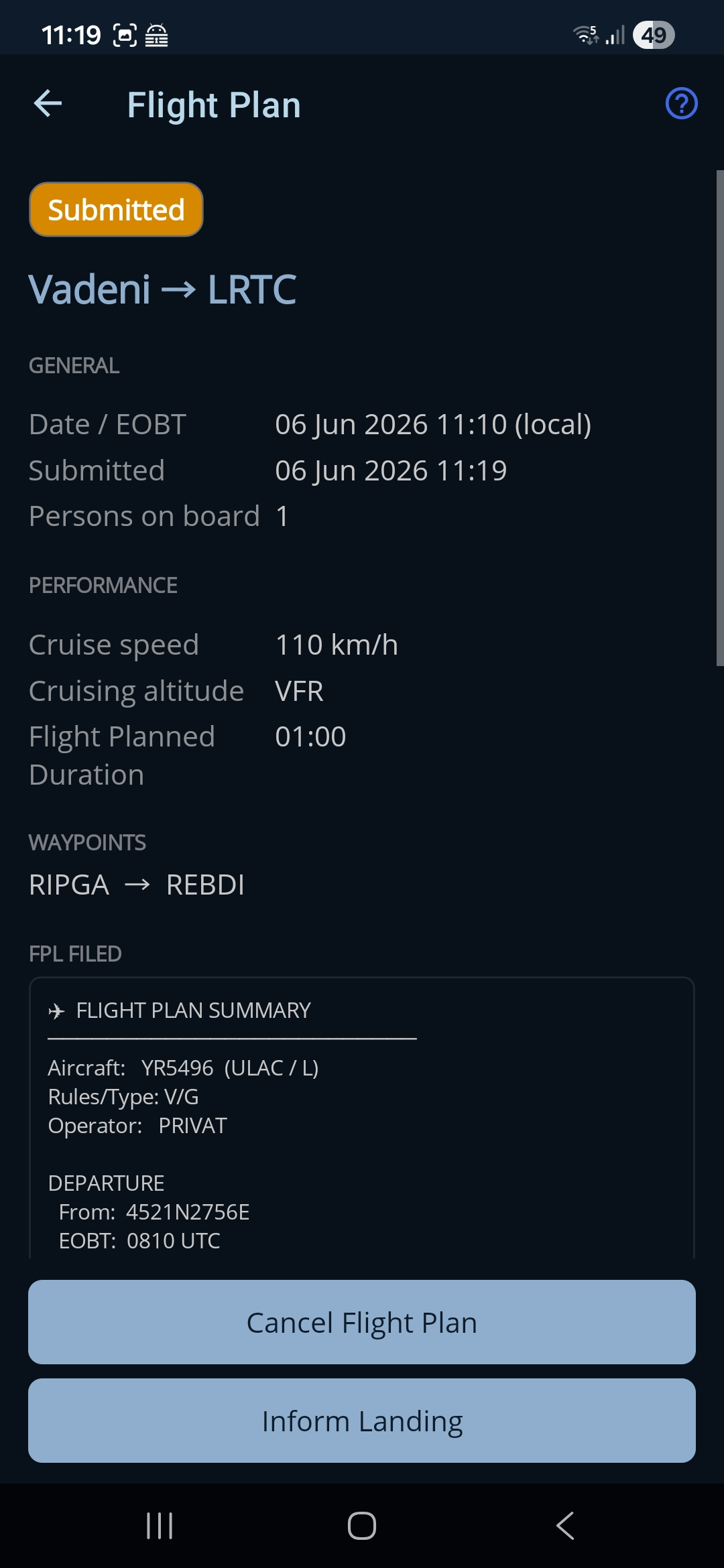
A read-only summary of a single flight plan, plus the actions available for it. What you can do depends on the plan's status — a draft can be edited or submitted, a filed plan can be cancelled or have its landing confirmed. Everything above the filed messages describes the flight and reads the same however you filed it; the filing half of the page adapts to the authority the plan went to.
How to get here: tap any plan on the Flight Plans list.
Tap the help (?) icon in the top bar to show or hide the on-screen hint.
The summary
The top of the page shows a coloured status badge and the route. Below that are sections that appear when they have content:
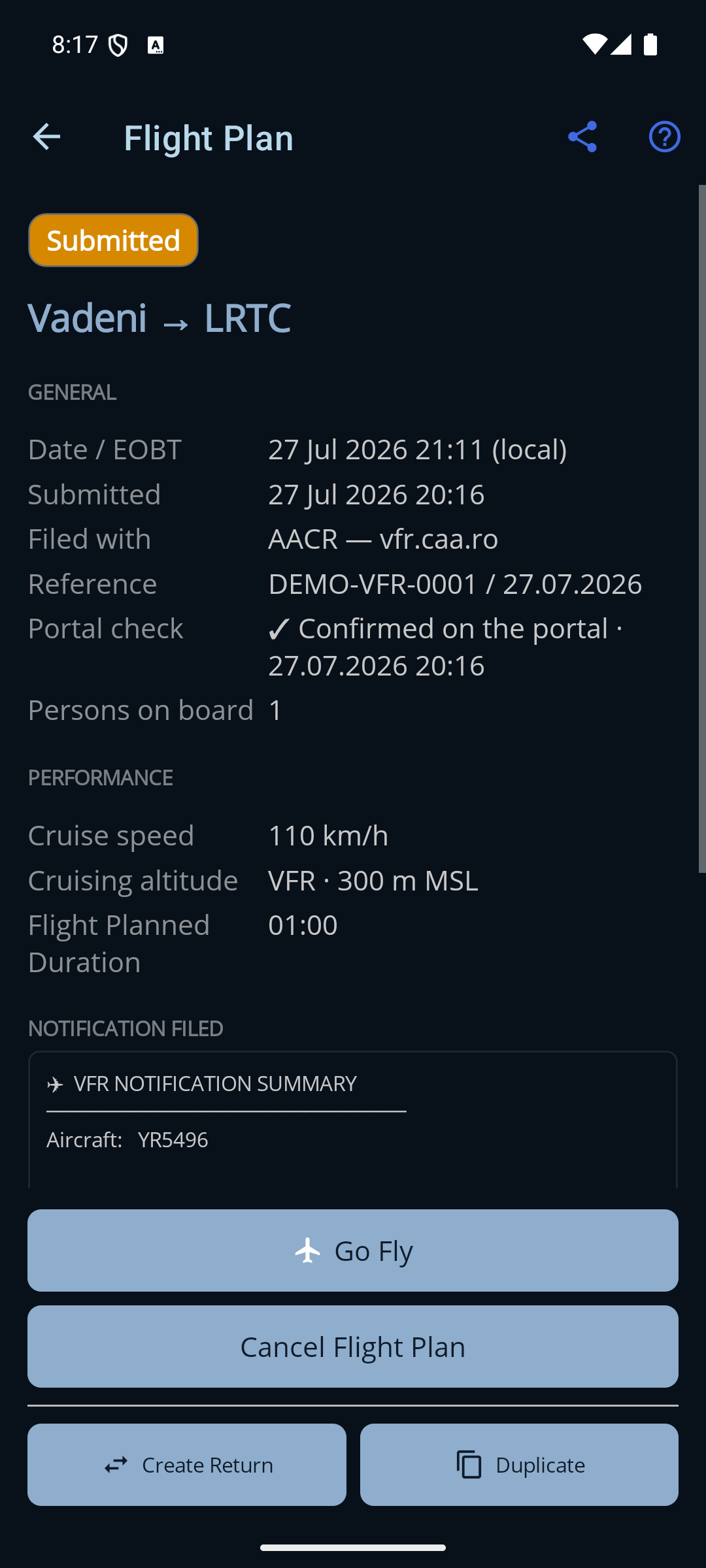
- General. Date / off-block time, persons on board, and — once they apply — when the plan was submitted, landed, or cancelled. Once the plan has been filed, three more rows appear here: Filed with, Reference and (on AACR plans) Portal check — see below.
- Performance. Cruise speed, cruising altitude, planned duration, and (after landing) the actual duration.
- Waypoints. The intermediate waypoints on the route, if any.
- Remarks. Any notes you entered on the plan.
- The filed messages. The exact text that was sent, shown once it has been filed. The headings depend on where the plan went: a ROMATSA plan shows FPL Filed / ARR Filed / CNL Filed (the ICAO flight plan, the arrival message and the cancellation), while an AACR plan shows Notification Filed / Landing Reported / Notification Cancelled.
Where the plan was filed
A flight plan can be filed with one of two authorities (see Choosing where to file), so a filed plan records which one:
- Filed with. ROMATSA or AACR — vfr.caa.ro. This is fixed at the moment you file and can never be changed — closing or cancelling always goes back to the same authority.
- Reference. What that authority calls your submission: ROMATSA's submission id, or the AACR notification number in the form the portal itself shows it, number / date.
- Portal check. Right after filing, the app looks the plan up on the authority's
own system and records what it found: ✓ Confirmed on the portal with the time
it checked, ⚠ Not found on the portal, or Could not be checked
if the app couldn't reach it. The row is re-checked (and overwritten) when you report a landing
or cancel.
This row does not appear on ROMATSA plans at all — ROMATSA publishes no filing status the app can read, so there is nothing to report. That is also why a ROMATSA filing still asks you to confirm it yourself.
Actions
A bar at the bottom shows only the actions allowed for the current status:
- Go Fly. Opens the in-flight moving map. (Drafts and submitted plans — it's the first button in the bar.)
- Edit. Opens the plan in the form to change it. (Drafts only.)
- Submit. Asks which authority to file with, then files the plan. (Drafts only.)
- Delete. Removes the draft from your device. (Drafts only.)
- Cancel Flight Plan. After a confirmation, cancels the filed plan with the authority it was filed with — a CNL message to ROMATSA, or a cancellation on vfr.caa.ro. (Submitted plans.)
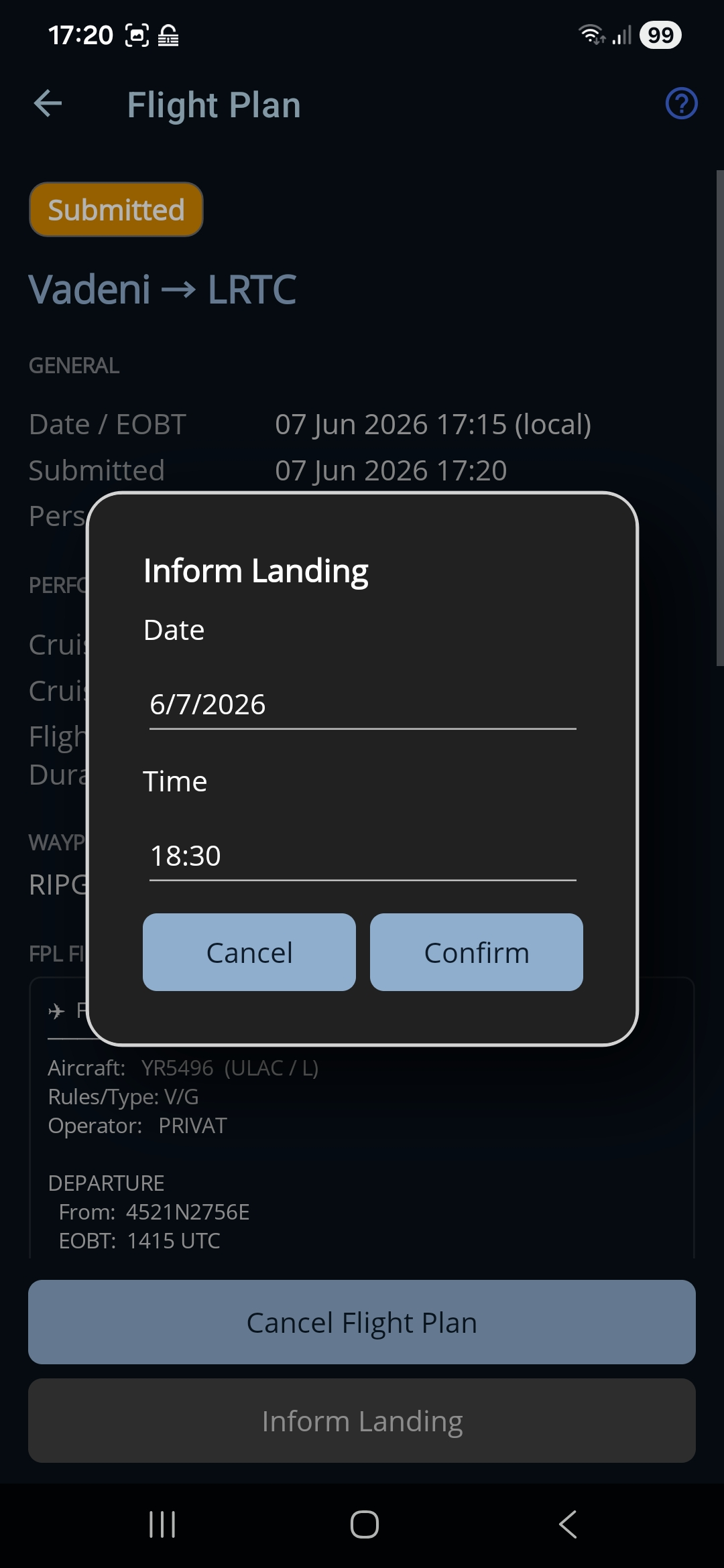
- Inform Landing. Tells the authority the flight is complete — an ARR message to ROMATSA, or a landing report on vfr.caa.ro — and the plan becomes Landed. (Submitted plans, and only once the planned off-block time has passed — a flight that hasn't departed hasn't landed. Do this only after you've actually landed.)
- Create Return. Builds a fresh draft for the trip back — departure and destination swapped and any waypoints reversed. (Always available.)
- Duplicate. Copies this plan into a fresh draft you can adjust and file. (Always available.)
Once a plan is Landed or Cancelled it is complete — the authority needs nothing further — but you can still use Create Return or Duplicate to start a new plan from it.
Sharing the route (Export GPX)
The share icon in the top bar exports the plan's route as a GPX file for other planners (for example SkyDemon). It opens a small sheet with two choices — Send To (hand the route straight to another app) and Save GPX file… (share it via email, Drive, Files, and so on). Only the route travels; aircraft, fuel and weight stay in Ro Flight. Local-area (Zone) plans have no route to export, so this is unavailable for them. See the Import & Export page for the full walkthrough.
Inform Landing, step by step
Tapping Inform Landing on a plan filed with ROMATSA walks through three short dialogs:
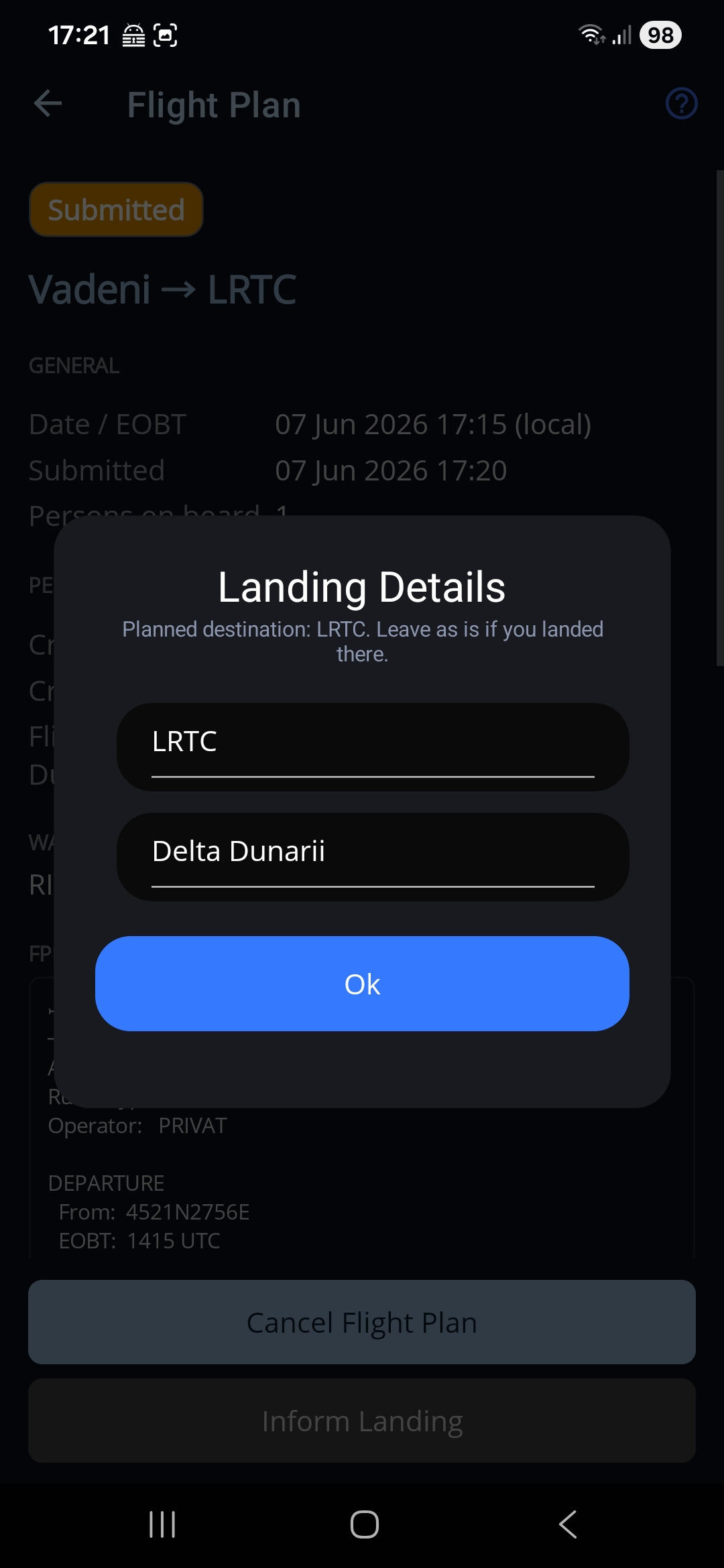
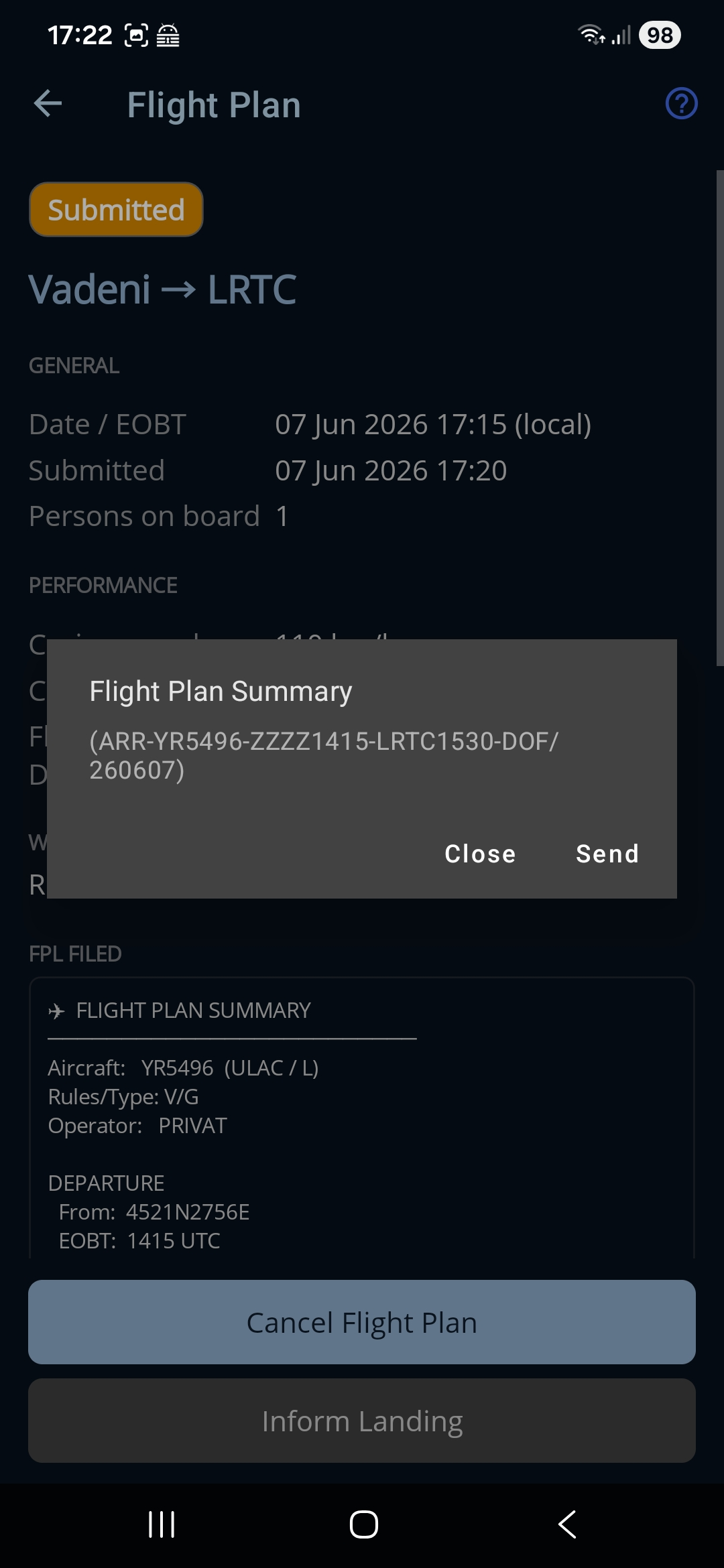
On a plan filed with AACR it is two dialogs, not three: the Landing Details step is skipped, because a vfr.caa.ro landing report carries no aerodrome or diversion — it simply closes the notification the app already holds the number for.